Configure Cura for Filament Run-Out Recovery
How to Configure Cura for Continuous Printing with Filament Run-Out Detection and Recovery
Estimated reading time: 5 minutes
- Minimize wasted materials through effective run-out detection.
- Utilize appropriate hardware to enhance functionality.
- Integrate OctoPrint for remote management of print jobs.
- Learn slicing settings specific to filament recovery.
- Verify setup through testing and optimization.
Table of Contents
- Understanding Filament Run-Out Detection
- Recommended Hardware Sensors
- Configuring Your 3D Printer Firmware
- Setting Up OctoPrint
- Configuring Cura for Filament Run-Out Detection and Recovery
- Verification and Testing
- Practical Takeaways for Future Prints
- Conclusion
- FAQ
Understanding Filament Run-Out Detection
Filament run-out detection is a feature that uses a sensor to monitor the presence of filament in the extruder. When the sensor detects that the filament is running low or completely out, it signals the printer to pause the print job. This allows you to replace the filament and resume printing without losing significant progress. Many modern printers support this feature, but it requires proper configuration in your slicer software—such as Ultimaker Cura—along with compatible hardware.
Recommended Hardware Sensors
Before setting up filament run-out detection with Cura, it’s crucial to have the right hardware. Here are some recommended sensors:
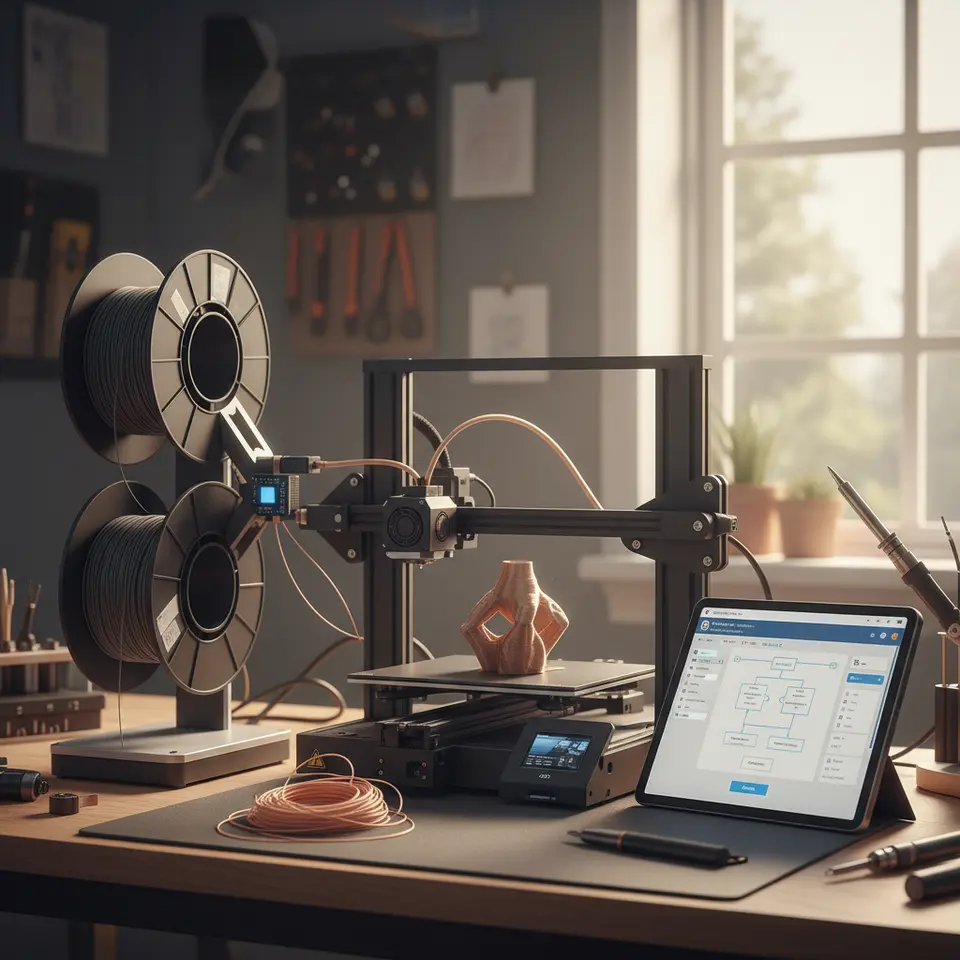
- Filament Run-Out Sensor: Devices like the “V6 Filament Sensor” or “BLTouch” can monitor filament presence. They are easy to install and compatible with most 3D printers.
- OctoPrint and Raspberry Pi: Utilizing OctoPrint on a Raspberry Pi enables remote monitoring and has plugins that support filament run-out detection, providing a user-friendly interface for managing prints.
Configuring Your 3D Printer Firmware
To take full advantage of filament run-out detection, you’ll want to make sure your 3D printer’s firmware supports this feature. Many 3D printers come with firmware that does. Here’s how to check and configure it:
- Identify Your Firmware: Check whether your 3D printer uses Marlin, RepRapFirmware, or another variant. Consult the printer’s manual or official website for this information.
- Configuring Marlin: If you are using Marlin, ensure that you enable the
FILAMENT_RUNOUT_SENSORfeature in the firmware configuration (Configuration.h). Here’s an example of the configuration snippet:
#define FILAMENT_RUNOUT_SENSOR
#if ENABLED(FILAMENT_RUNOUT_SENSOR)
  #define FILAMENT_RUNOUT_DISTANCE_MM 7 // Adjust based on your sensor
  #define FILAMENT_RUNOUT_SCRIPT "M601" // Custom G-code for filament recovery
#endif
- Flashing the Firmware: Compile and upload the firmware to your 3D printer. Your printer should now recognize the filament run-out sensor.
Setting Up OctoPrint
OctoPrint serves as a powerful tool for managing your print jobs remotely. It also simplifies the handling of filament run-out scenarios.
- Install OctoPrint: Follow the OctoPrint installation guide to set up your Raspberry Pi with OctoPrint.
- Install the Filament Run-Out Plugin: In the OctoPrint interface, navigate to the “Plugin Manager” and find the “Filament Runout Sensor” plugin. Install this to gain better control over your print jobs.
- Configuration: Set up the plugin based on your specific filament run-out sensor. Test it to ensure it stops prints correctly when filament is low.
Configuring Cura for Filament Run-Out Detection and Recovery
With your hardware and firmware ready, it’s time to configure Ultimaker Cura for effective transformation in your 3D printing workflow.
Slicing Settings
- Enable Script Commands: Navigate to the Printer Settings in Cura. Under the “Custom G-code” section, enter scripts to handle the filament run-out scenario gracefully. This includes stopping the print and moving the nozzle away:
M117 Filament Run Out Detected
G1 Z+10 ; raise nozzle
M25 ; pause the print
- Recovery G-Code: For the recovery script, use the following lines to ensure the printer resumes correctly:
M117 Loading New Filament
M601 ; command to load new filament
M24 ; resume the print
- Slice the Model: Once the settings are adjusted, slice your model in Cura, making sure to save these custom commands as a part of your profile. This will ensure that every print using this setup incorporates filament management.
Verification and Testing
Testing your setup is crucial to ensure everything works as intended. Follow these steps to confirm your configuration:
- Print a Test Object: Choose a simple object to print (like a small cube) and start the print.
- Simulate Filament Run-Out: Manually switch off the filament sensor or cut the filament mid-print to see if the printer pauses appropriately.
- Observe Recovery: Refill the filament and see if the printer resumes correctly. Be attentive to ensure the printer doesn’t miscalculate the previous position. Proper recovery can prevent quality issues on reprint.
Practical Takeaways for Future Prints
- Always Check Sensor Placement: Proper positioning of your filament run-out sensor can significantly affect its responsiveness.
- Familiarize with OctoPrint Features: The plugin ecosystem can enhance your experience even further with notification system setups.
- Experiment with Slicing Settings: Sometimes, tweaking parameters related to retraction, layer height, or nozzle travel speeds can optimize recovery times.
Conclusion
Configuring Ultimaker Cura for continuous printing with filament run-out detection and recovery is essential for both effortless printing and ensuring high-quality finished products. By following these guidelines—ranging from hardware recommendations to practical slicing settings—you can minimize downtime and maximize efficiency in your 3D printing endeavors.
To further enhance your 3D printing projects, consider diving into guides like our article on Cura Adaptive Layers Optimization or explore solutions for print quality with our Cura Speed Quality Profiles guide.
Stay informed and get the latest insights by visiting our site at CuraSlicers.com and subscribe for more expert tips and tutorials.
Happy printing!
FAQ
Q: What should I do if my filament run-out sensor fails?
A: Make sure the sensor is properly calibrated and positioned. Test it with a manual filament run-out action.
Q: Can all 3D printers use filament run-out detection?
A: Many modern printers are compatible, but always check your printer’s specifications and firmware capabilities.
Q: How do I know if my firmware is up to date?
A: Consult the manufacturer’s website or the firmware documentation for update information.