Master Retraction Settings in Cura to Eliminate Stringing
How to Dial in Retraction Settings in Cura to Stop Stringing – A Complete Guide for Every 3D Printer
Estimated reading time: 7 minutes
- Understand the importance of retraction settings to combat stringing issues.
- Follow a systematic approach for dialing in retraction settings.
- Utilize the provided G-code for quick testing.
- Explore filament-specific tips for optimal results.
- Automate your workflow with tools like n8n for efficiency.
Table of Contents
- Introduction
- Why Retraction Matters – The Science Behind the Pull
- Step‑by‑Step Experiment Plan
- Interpreting the Data – From Numbers to Settings
- Filament‑Specific Tips
- Connecting the Dots: Workflow Automation with n8n
- Practical Takeaways – Your Cheat Sheet
- Frequently Asked Questions
Introduction
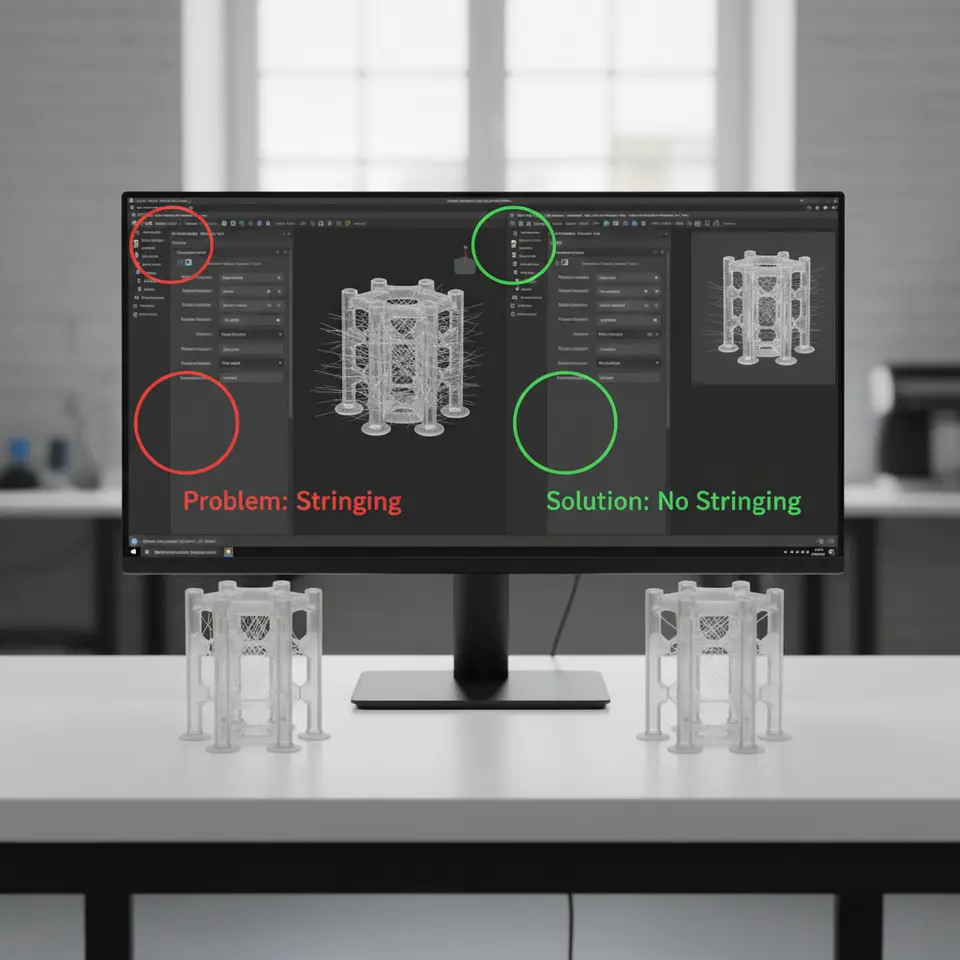
If you’ve ever pulled a freshly printed part off the build plate only to find a web of thin, unwanted plastic hanging between gaps, you know the frustration of stringing. The good news? It’s almost always a slicer‑setting issue, and the most powerful weapon in your arsenal is retraction. In this article we’ll answer the burning question “how to dial in retraction settings in Cura to stop stringing” with science‑backed explanations, a step‑by‑step experimental plan, ready‑to‑use G‑code, and a clear interpretation guide. By the end, you’ll have a repeatable workflow that eliminates ghosts, improves surface finish, and saves you hours of post‑processing.
Pro tip: Bookmark this guide and refer back whenever you switch filaments, upgrade your hot‑end, or change nozzle size. The fundamentals stay the same; only the numbers shift.
Why Retraction Matters – The Science Behind the Pull
When the extruder finishes a travel move (e.g., moving from one island to the next), the hot melt inside the nozzle continues to ooze under pressure. This molten filament can be deposited on the travel path, creating strings. Retraction works by reversing the filament a short distance, relieving pressure, and allowing the melt to solidify before the nozzle moves.
| Parameter | What It Does | Typical Range (PLA) | Typical Range (ABS / PETG) |
|---|---|---|---|
| Retraction Distance | How far the filament is pulled back (mm). | 4–6 mm (Bowden) / 1–2 mm (Direct‑drive) | 1–3 mm (Direct) / 4–7 mm (Bowden) |
| Retraction Speed | How quickly the pull‑back occurs (mm/s). | 25–45 mm/s | 30–60 mm/s |
| Z‑Hop (Lift) Height | Raises the nozzle during travel to avoid dragging strings on the part. | 0.2–0.4 mm (optional) | 0.2–0.6 mm (often needed for PETG) |
| Coasting | Stops extrusion a few milliseconds before the end of a move, letting the remaining pressure finish the line. | 0.2–0.5 mm³ | 0.5–1.0 mm³ |
| Retraction Minimum Travel | Minimum distance a travel must exceed before retraction is applied. | 1.5 mm | 1.0 mm |
Sources: Ultimaker Cura documentation [¹], All3DP’s retraction guide [²].
Understanding each knob helps you avoid the classic “over‑retract” (causing gaps) or “under‑retract” (causing strings) traps.
Step‑by‑Step Experiment Plan
Below is a repeatable workflow you can run on any printer (Bowden or direct‑drive) using Cura 5.x. The plan combines three classic test prints:
- Stringing Test Model – a series of pillars with varying distances.
- Temperature Tower – isolates temperature effects.
- Retraction Calibration Cube – visualizes under‑ and over‑retraction.
1. Prepare the Test Files
- Stringing Test: Download the 10‑pillar model from the Cura Marketplace or generate one: 10 cylinders (10 mm height, 5 mm diameter) spaced 5 mm apart.
- Temperature Tower: Use a standard 20 mm tower with 10 mm sections, each 5 °C lower than the previous.
- Retraction Cube: A 20 mm cube with thin walls (0.4 mm) that will show “blobs” if retraction is off.
Quick download: All three STL files are available in our Free Calibration Pack – just click the “Download” button on the right side of this article.
2. Baseline Settings
Load the model(s) into Cura and start with factory defaults for your printer profile:
- Retraction Distance: 5 mm (Bowden) / 1.5 mm (Direct)
- Retraction Speed: 40 mm/s
- Z‑Hop: 0 mm (off)
- Coasting: 0 mm³ (off)
- Print Temperature: Manufacturer‑recommended (e.g., 200 °C for PLA).
Print the three models without any changes. Record the stringing severity (visual rating 1–5) and note any blobs on the cube.
3. Isolate Temperature
Stringing is heavily temperature‑dependent. Using the Temperature Tower, identify the temperature where the filament stops oozing excessively. For PLA, you’ll often see a sweet spot around 200 °C ± 5 °C. Mark this temperature and use it for the remaining tests.
4. Tweak Retraction Distance
Create a Cura “Retraction Test” by duplicating the baseline profile and adjusting Retraction Distance in 0.5 mm increments (Bowden) or 0.2 mm increments (Direct). Keep speed constant.
- Print the Stringing Test after each change.
- Score: 0 = no strings, 5 = severe strings.
Plot the scores on a simple graph (you can use Excel or Google Sheets). The optimal distance is usually where the score drops to 0–1 before rising again (over‑retraction leads to gaps).
5. Adjust Retraction Speed
With the optimal distance locked, vary Retraction Speed in 5 mm/s steps. Faster speeds reduce the time pressure has to build, but too fast can grind the filament (especially flexible filaments).
- Watch for “clicking” noises – a sign of excessive speed.
- Print the Retraction Cube after each speed change. Look for “under‑extrusion” at the start of each wall (a sign of over‑retraction).
Select the speed that yields clean walls and no strings.
6. Enable Z‑Hop (Optional)
If you still see thin strings hanging from tall features, enable Z‑Hop:
- Z‑Hop Height: 0.2 mm for most printers.
- Z‑Hop When Retracted: On (default).
Print the Stringing Test again. Z‑Hop should lift the nozzle enough to prevent the filament from dragging across already‑printed material.
7. Fine‑Tune Coasting
Coasting is a subtle tool for over‑extrusion at the end of a line, which can also cause stringing.
- Start with Coasting = 0.2 mm³.
- Increase in 0.1 mm³ steps until you notice a slight reduction in stringing without creating gaps.
Note: Coasting is most effective on PETG and ABS, where the melt stays fluid longer.
8. Document Your “Profile”
Once you’ve landed on a set of numbers that consistently give a Score ≤ 1, save the profile as “My Filament – PLA – Optimized Retraction” (or the appropriate filament name).
Add a short note in Cura’s “Profile Settings” field: “Retraction 4.8 mm @ 45 mm/s, Z‑Hop 0.3 mm, Coasting 0.3 mm³ – verified on Ender 3 V2, 0.4 mm nozzle.” This makes it easy to switch back later.
Ready‑to‑Use Retraction Testing G‑Code
If you prefer a quick, one‑file test instead of swapping profiles, paste the following G‑code into a new Cura project (set Layer Height = 0.2 mm, Print Speed = 40 mm/s, Nozzle = 0.4 mm). The code prints a series of 5 mm‑spaced pillars, each with a different retraction setting.
;=== Retraction Calibration G‑code – Cura 5.x ===
; Filament: PLA, 200°C, 60 mm/s travel, 0.2 mm layer height
; ----------------------------------------------------
M104 S200 ; set extruder temperature
M140 S60  ; set bed temperature
M190 S60  ; wait for bed to reach temp
M109 S200 ; wait for extruder to reach temp

G28 ; home all axes
G1 Z0.3 F3000 ; prime line start height

;--- Define retraction settings array ---
; Format: [distance(mm), speed(mm/s), Z‑hop(mm), coasting(mm³)]
; (distance, speed, zhop, coast)
; 0: baseline, 1: +0.5 mm, 2: +1.0 mm, etc.
; Adjust as needed for your printer type.
; ----------------------------------------------------
; Pillar 1 – Baseline
M207 S5 F40 ; Retraction distance 5 mm, speed 40 mm/s
M574 Z0 ; No Z‑hop
M207 T0 ; Coasting off
G1 X20 Y20 F3000 ; travel
G1 Z0.2 ; start layer
G1 X20 Y30 E2 F1200 ; draw pillar
; Pillar 2 – +0.5 mm distance
M207 S5.5 F40
G1 X40 Y20 F3000
G1 Z0.2
G1 X40 Y30 E2 F1200
; Pillar 3 – +1.0 mm distance
M207 S6 F40
G1 X60 Y20 F3000
G1 Z0.2
G1 X60 Y30 E2 F1200
; Pillar 4 – +1.5 mm distance
M207 S6.5 F40
G1 X80 Y20 F3000
G1 Z0.2
G1 X80 Y30 E2 F1200
; Pillar 5 – +2.0 mm distance (use for direct‑drive)
M207 S7 F40
G1 X100 Y20 F3000
G1 Z0.2
G1 X100 Y30 E2 F1200
; ----------------------------------------------------
M104 S0 ; turn off hotend
M140 S0 ; turn off bed
M84 ; disable motors
How to read the results:
- No strings on a pillar → retraction distance is sufficient.
- Thin hair‑like strings → increase distance or speed.
- Gaps or “holes” at the top of the pillar → you’ve over‑retracted; lower the distance or speed.
Run the file, let it finish, then compare each pillar side‑by‑side. The pillar that looks cleanest without gaps is your sweet spot.
Interpreting the Data – From Numbers to Settings
| Observation | Likely Cause | Adjustment |
|---|---|---|
| Thin, occasional strings | Retraction distance too low or speed too slow. | Increase distance by 0.2–0.5 mm (direct) / 0.5 mm (Bowden) or raise speed by 5–10 mm/s. |
| Thick, continuous strings | Temperature too high or retraction disabled. | Lower print temperature by 5 °C (use temperature tower), enable/raise retraction. |
| Gaps or “holes” at start of a wall | Over‑retraction (excessive distance or speed). | Decrease distance or speed, or enable “Minimum Travel” > 1 mm. |
| Blobs at the end of a line | Insufficient coasting or pressure buildup. | Turn on coasting (0.2–0.5 mm³) or enable “Combing” to keep nozzle within infill. |
| Stringing from tall features only | Nozzle dragging on printed part. | Enable Z‑Hop (0.2–0.4 mm). |
| Grinding noises | Retraction speed too high for filament type. | Reduce speed by 5–10 mm/s. |
By systematically applying the above table after each test, you’ll converge on a retraction profile that works for a given filament‑printer combination.
Filament‑Specific Tips
| Filament | Recommended Retraction Distance | Speed | Z‑Hop | Coasting |
|---|---|---|---|---|
| PLA (standard) | 4.5–5.5 mm (Bowden) / 1.0–1.5 mm (Direct) | 35–45 mm/s | 0–0.2 mm (optional) | 0.2 mm³ (optional) |
| PETG | 5–7 mm (Bowden) / 1.5–2.5 mm (Direct) | 40–60 mm/s | 0.2–0.4 mm (recommended) | 0.5–0.8 mm³ |
| ABS | 4–6 mm (Bowden) / 1–2 mm (Direct) | 30–50 mm/s | 0.2–0.4 mm | 0.3–0.5 mm³ |
| TPU (flex) | 1–2 mm (direct only) | 20–30 mm/s (slow) | 0 mm (avoid) | 0 mm (coasting not useful) |
Why the differences? PETG stays fluid longer, so it needs more distance and a Z‑hop to avoid dragging. TPU is soft; pulling too far can cause filament to stretch or jam, so keep distance short and speed low.
Connecting the Dots: Workflow Automation with n8n
Once you have a solid retraction profile, you can automate its deployment across multiple printers using n8n, the free‑and‑open‑source workflow engine we love at CuraSlicers.com.
- Create a JSON Export of your Cura profile (`*.curaprofile`).
- Set up an n8n HTTP Request node that pushes the JSON to each printer’s OctoPrint API (`/api/files/local`).
- Trigger the workflow whenever you add a new filament to your inventory spreadsheet (Google Sheets node).
The result? A single click updates all printers with the correct retraction settings, eliminating human error and ensuring every print starts with the optimal profile.
Need a step‑by‑step tutorial? Check out our guide Automating Cura Profiles with n8n.
Practical Takeaways – Your Cheat Sheet
| Setting | Recommended Starting Value (PLA, Bowden) | How to Adjust |
|---|---|---|
| Retraction Distance | 5 mm | +0.5 mm if strings persist; –0.5 mm if gaps appear. |
| Retraction Speed | 45 mm/s | +5 mm/s if strings remain; –5 mm/s if filament grinds. |
| Z‑Hop Height | 0 mm (off) → 0.2 mm if tall features string. | Enable only when needed; higher values can cause layer shifts. |
| Coasting | 0 mm³ (off) → 0.3 mm³ for PETG/ABS. | Increase in 0.1 mm³ steps; watch for under‑extrusion. |
| Minimum Travel | 1.5 mm | Raise to 2 mm if travel moves are very short. |
Quick Test Routine (5 min):
- Load the Retraction Testing G‑code above.
- Print on a small 10 × 10 cm bed area.
- Visually inspect the five pillars.
- Choose the pillar with clean walls and no gaps → adopt those settings.
Frequently Asked Questions
Q1: My printer has a direct‑drive extruder but Cura’s default profile shows a 5 mm retraction distance. Should I keep it?
A: No. Direct‑drive systems need far less distance (1–2 mm). Using 5 mm will cause filament grinding and gaps. Follow the “Filament‑Specific Tips” table and run the pillar test to fine‑tune.
Q2: Does increasing temperature ever help with stringing?
A: Generally, lowering temperature reduces ooze. However, if you drop too low you’ll get under‑extrusion. Use a temperature tower to find the lowest temperature that still prints solid layers, then focus on retraction.
Q3: My prints still have occasional strings even after perfect retraction. What else can I try?
A: Enable Combing Mode (Within Infill) to keep travel moves inside already‑printed areas, and turn on Avoid Printed Parts When Traveling. Also, verify that your nozzle is clean—residue can act as a “wick” that drags filament.
Q4: How does nozzle size affect retraction?
A: Larger nozzles (0.6 mm, 0.8 mm) push more melt, so you may need a slightly higher retraction distance (by ~0.5 mm) and possibly a slower speed to give the filament time to compress.
How This Guide Fits Into CuraSlicers.com
We’ve just covered the core of retraction tuning, but there’s a whole ecosystem of related content you can explore:
- Best Cura Settings for Ender 3 – a deep dive into temperature, speed, and acceleration for the popular printer.
- Ultimate Guide to Adhesion Techniques – because a perfect first layer is the foundation for any successful retraction experiment.
Visit our homepage for a full library of tutorials, slicer profiles, and workflow automation tips.
Call‑to‑Action
Ready to say goodbye to ghostly strings and hello to flawless prints?
- Download the free calibration pack (STL + G‑code) at the top of this page.
- Apply the step‑by‑step method we outlined and save your custom Cura profile.
- Automate the rollout with n8n and keep every printer in your shop on the same page.
If you found this guide helpful, subscribe to our newsletter for weekly updates on slicer hacks, new workflow templates, and exclusive printable assets. Follow us on Twitter and Instagram @CuraSlicers for quick tips and community showcases.
Happy printing, and may your retractions be swift and your prints string‑free!