Optimizing Cura Slicer for Consistent Prints
Estimated Reading Time: 6 minutes
Key Takeaways:
- Standardization of Cura settings improves consistency in print quality across multiple machines.
- Regular calibration and documentation are vital for maintaining optimal printer performance.
- Utilizing Cura’s profile management and extensions can enhance workflow efficiency in print farms.
- Batch testing new materials ensures discrepancies are identified before full production.
Table of Contents:
- Understanding the Importance of Optimization
- The Role of Standardized Profiles
- Key Cura Slicer Settings for Optimization
- Practical Tips for Creating and Implementing Standardized Profiles
- Utilizing Cura Extensions for Enhanced Workflow
- Conclusion: Enhancing Print Farm Consistency with Standardized Cura Profiles
- FAQ
Understanding the Importance of Optimization
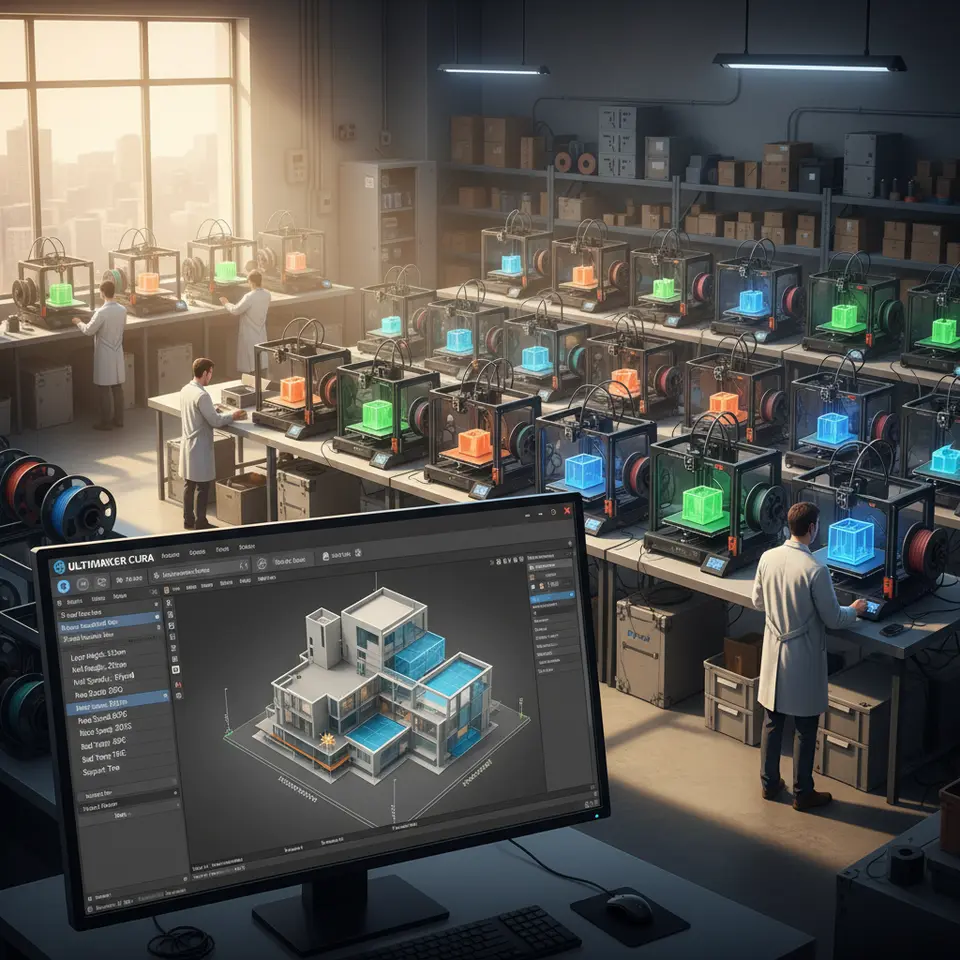
In a print farm environment, multiple 3D printers are typically tasked with producing similar outputs concurrently. Variability among machines—whether from mechanical differences, filament inconsistencies, or environmental factors—can lead to unexpected outcomes. This unpredictability is compounded if each machine uses its own slicer settings. To mitigate such issues, Cura slicer optimization becomes indispensable.
The Role of Standardized Profiles
Standardizing Cura profiles across your fleet of printers helps ensure that each machine operates under the same conditions. This means using identical settings for layer height, print speed, retraction, and temperature. By creating a baseline profile that can be applied universally, you can reduce the variance seen in endpoints while simultaneously improving overall print quality.
For instance, when using a Cura profile optimized for high-quality prints, all printers will follow the same guidelines, reducing discrepancies caused by individual machine characteristics. Source: Ultimaker’s Cura Documentation directs users on how to tailor settings effectively on multiple machines to ensure consistency.
Key Cura Slicer Settings for Optimization
Below are some of the most vital settings to focus on when optimizing Cura for print farm consistency:
1. Layer Height
Layer height directly influences the print’s finish quality and speed. A common practice is to set a standard layer height, typically between 0.1 mm for high-detail models and 0.3 mm for fast prints. This uniformity is crucial when generating prints that require post-processing or final assembly.
2. Print Speed
While higher print speeds can reduce the time taken for each print, they may also increase the risk of defects. For most print farms, a speed range between 40-60 mm/s is effective. Create a standard operating procedure (SOP) to guide the ideal speeds depending on the materials being used.
3. Retraction Settings
Inconsistent stringing and oozing can diminish print quality, especially in detailed models. Set consistent retraction distances and speeds across all machines—generally, retraction distance varies between 4-6 mm for direct drive setups, while for Bowden setups, it’s often 6-8 mm. This standardization helps prevent unwanted artifacts, creating cleaner finished products.
4. Temperature Profiles
Filament type dictates optimal printing temperatures. Standardizing profiles must include temperature settings based on the material used—PLA typically prints well at 200-220 °C, while ABS might require 220-250 °C. Understanding these requirements and applying them uniformly across machines will help in achieving consistent outcomes.
5. Cooling Settings
Effective cooling is vital for maintaining quality, particularly with materials like PLA that require rapid cooling to prevent warping. Having a standard cooling fan speed and ensuring that all printers are using the same fan configuration can eliminate inconsistencies in cooling rates.
Practical Tips for Creating and Implementing Standardized Profiles
1. Document Settings: Create a detailed document or spreadsheet that lists optimal settings for each material type used in your farm. Include notes on observed variances between machines for quick reference during troubleshooting.
2. Profile Management: Utilize Cura’s profile management features to save distinct profiles for different applications—ensure these profiles reflect the standardized settings you’ve developed.
3. Regular Calibration: Conduct regular calibrations on each printer to ensure they are performing optimally. This includes checking the bed leveling, nozzle height, and flow rate, especially after swapping filaments.
4. Feedback Mechanism: Implement a feedback loop where operators can report variances or quality issues. Adjust settings centrally based on this data to refine your profiles further.
5. Batch Testing: When introducing a new material or a different print profile, conduct batch tests across multiple machines before scaling up to full production. This will help identify any discrepancies early on.
Utilizing Cura Extensions for Enhanced Workflow
Cura allows users to extend its functionalities through plugins that can further support optimization efforts. For instance, using plugins that focus on material compatibility checks or advanced supports can help improve print success rates.
If you want to learn about leveraging these plugins more effectively, read our guide on Cura Extensions to Boost Printing.
Conclusion: Enhancing Print Farm Consistency with Standardized Cura Profiles
By standardizing Cura slicer settings across your print farm, you can drastically reduce machine-to-machine variance. This optimization leads to improved print quality, reduced material wastage, and enhanced overall productivity. As you embark on this journey of optimization, remember that ongoing testing, calibration, and documentation are your best allies in maintaining consistency.
FAQ
Q1: What is Cura slicer optimization?
A1: Cura slicer optimization refers to the process of configuring the Cura software settings to standardize print profiles, reducing variability in print quality across different 3D printers in a print farm.
A1: Cura slicer optimization refers to the process of configuring the Cura software settings to standardize print profiles, reducing variability in print quality across different 3D printers in a print farm.
Q2: Why is standardization important in a print farm?
A2: Standardization helps ensure that all printers are set to the same parameters, which minimizes differences in print outcomes, improves quality, and enhances productivity.
A2: Standardization helps ensure that all printers are set to the same parameters, which minimizes differences in print outcomes, improves quality, and enhances productivity.
Q3: How often should I calibrate my printers?
A3: Regular calibrations should be done based on usage, ideally before switching materials or after significant maintenance tasks.
A3: Regular calibrations should be done based on usage, ideally before switching materials or after significant maintenance tasks.
Q4: Can I use plugins with Cura?
A4: Yes, Cura supports plugins that can extend its functionalities and help with various aspects of the printing process, including material compatibility and support structures.
A4: Yes, Cura supports plugins that can extend its functionalities and help with various aspects of the printing process, including material compatibility and support structures.
Q5: Where can I find more resources on Cura?
A5: For additional resources, visit our main page CuraSlicers.com for comprehensive tutorials and guides.
A5: For additional resources, visit our main page CuraSlicers.com for comprehensive tutorials and guides.