Master Flow Rate and Line Width in Cura for Perfect Prints
Understanding Flow Rate and Line Width in Cura
Estimated Reading Time: 10 minutes
- Master flow rate and line width settings for better 3D prints.
- Understand the impact of these parameters on dimensional accuracy.
- Get hands-on calibration techniques to fine-tune your printer.
- Avoid common pitfalls that lead to printing issues.
- Automate calibration workflows using tools like n8n.
Table of Contents
- Flow Rate vs. Line Width: Definitions & Core Differences
- Why Both Settings Matter for Dimensional Accuracy
- Preparing Your Printer for Calibration
- Step‑by‑Step Flow Rate Calibration in Cura
- Line Width Test: Getting the Perfect Wall Thickness
- Diagnosing Common Over‑/Under‑Extrusion Issues
- Advanced Workflow Automation with n8n
- Putting It All Together: A Quick Reference Cheat Sheet
- Next Steps & Resources
1. Flow Rate vs. Line Width: Definitions & Core Differences
| Parameter | Where It Lives in Cura | What It Controls | Typical Default | How Cura Uses It |
|---|---|---|---|---|
| Flow Rate (sometimes called Extrusion Multiplier) | Material → Flow tab | Multiplies the calculated extrusion volume for every move. | 100 % (1.0) | Scales the amount of filament pushed through the nozzle, compensating for filament diameter variance, nozzle wear, or hot‑end inconsistencies. |
| Line Width | Shell → Wall Line Width (or Initial Layer Line Width) | Desired width of each printed extrusion line, expressed as a percentage of the nozzle diameter. | 100 % (e.g., 0.4 mm nozzle → 0.4 mm line) | Guides Cura’s toolpath generator: a 120 % line width on a 0.4 mm nozzle tells Cura to lay down 0.48 mm wide tracks, which can improve wall bonding and reduce printing time. |
Flow Rate is a volumetric adjustment. It tells Cura “push X% more (or less) material than the slicer’s mathematical model predicts.”
Line Width is a geometric instruction. It tells Cura “draw each line Y mm wide, regardless of the nozzle size.”
Both parameters ultimately affect extrusion volume (mm³ of filament per second), but they do so from different angles. Understanding this distinction is the first step toward eliminating print anomalies.
Research note: According to All3DP’s comprehensive guide on flow rate, a mis‑set flow multiplier can cause up to a 5 % dimensional error on a simple cube test print. (source)
2. Why Both Settings Matter for Dimensional Accuracy
When Cura slices a model, it calculates the exact amount of filament needed for each segment based on:
- Filament diameter (entered in the material profile).
- Layer height and line width (geometric parameters).
- Print speed (affects melt flow dynamics).
If any of these inputs are off, the printer will either over‑extrude (bulging walls, stringing) or under‑extrude (gaps, weak layers).
Flow Rate acts as a safety net. Even with perfect geometry, real‑world factors—like slight filament diameter tolerance (+/- 0.02 mm) or a worn nozzle—can throw off the actual volume. Adjusting flow rate compensates for those physical variances.
Line Width, on the other hand, influences how the material is laid down. A wider line can increase wall strength and reduce print time, but if the flow rate isn’t also tuned, the printer may try to push more material than it can melt, leading to blobs or a “fat‑finger” effect.
In practice, the optimal workflow is:
- Calibrate Flow Rate first (ensuring the printer extrudes the correct volume).
- Set the desired Line Width (based on part geometry and strength requirements).
- Fine‑tune both together to achieve the target dimensional tolerance (±0.1 mm for most hobbyist prints).
3. Preparing Your Printer for Calibration
Before you dive into Cura’s settings, make sure the hardware side is ready:
| Checklist | Why It Matters |
|---|---|
| Clean Nozzle – Remove any residue or partial clogs. | Prevents inconsistent melt flow that skews flow rate results. |
| Measure Filament Diameter – Use a digital caliper at three points (minimum 5 cm apart) and average the value. | Cura’s material profile uses this number to compute extrusion volume. |
| Verify Bed Level & Adhesion – A level bed eliminates Z‑offset errors that can masquerade as extrusion problems. | Guarantees that the first layer isn’t artificially thin or thick. |
| Update Firmware & Cura – Run the latest stable Cura version (e.g., 5.8.0) and firmware that supports linear advance if available. | Newer slicer algorithms improve flow calculations. |
| Warm‑up Consistently – Print at the same nozzle temperature for each test (e.g., 200 °C for PLA). | Temperature changes affect filament viscosity and thus extrusion volume. |
4. Step‑by‑Step Flow Rate Calibration in Cura
4.1. Print the “Single‑Wall Cube” Test
- Download the model – A 20 mm × 20 mm × 20 mm cube with a single outer wall (no infill).
*You can find a ready‑to‑use STL on Cura’s marketplace or generate one in Fusion 360.*
- Slicing Settings
- Layer Height: 0.2 mm (10 % of nozzle diameter)
- Wall Thickness: 0.4 mm (single wall)
- Line Width: 100 % (default)
- Flow Rate: 100 % (default)
- Print Speed: 50 mm/s (moderate)
- Print the cube on a well‑leveled bed with consistent temperature.
4.2. Measure the Wall Thickness
- Use a caliper to measure the wall thickness at three different points.
- Average the readings.
Ideal Result: The measured wall should be ≈0.40 mm (the nozzle diameter).
If the average is greater than 0.42 mm, you are over‑extruding → lower the flow rate.
If the average is less than 0.38 mm, you are under‑extruding → raise the flow rate.
4.3. Calculate the Correct Flow Rate
New Flow Rate (%) = (Target Width / Measured Width) × Current Flow RateExample: Measured 0.44 mm → New Flow = (0.40 / 0.44) × 100 % ≈ 91 %
Enter the new value in Cura’s Material → Flow → Flow Rate field and re‑slice.
4.4. Iterate
Print the cube again with the updated flow rate. Repeat the measurement until the wall thickness falls within ±0.02 mm of the target. Most printers converge after 2–3 iterations.
Pro tip: Record each iteration in a spreadsheet (temperature, flow rate, measured width). Over time you’ll build a “flow‑rate fingerprint” for each filament brand.
5. Line Width Test: Getting the Perfect Wall Thickness
Once flow rate is dialed in, you can safely experiment with line width to boost strength or speed.
5.1. Choose a Test Model
A 20 mm hollow cylinder with 2–3 walls works well because it highlights how line width influences wall overlap.
5.2. Slicing Variations
Create three Cura profiles:
| Profile | Line Width (% of nozzle) | Expected Effect |
|---|---|---|
| Narrow | 80 % (0.32 mm on 0.4 mm nozzle) | Higher resolution, slower print |
| Standard | 100 % (0.40 mm) | Baseline for comparison |
| Wide | 120 % (0.48 mm) | Faster, stronger walls, possible over‑extrusion if flow isn’t adjusted |
Important: When you increase line width, reduce the flow rate proportionally to keep extrusion volume constant. For a 120 % line width, set Flow Rate to roughly 83 % (100 % ÷ 1.20). Conversely, for 80 % line width, raise Flow Rate to about 125 % (100 % ÷ 0.80).
5.3. Print & Evaluate
- Check for gaps between lines (under‑extrusion) or bulges (over‑extrusion).
- Measure the outer diameter of the cylinder with a caliper.
- Compare the results against the CAD dimensions.
5.4. Selecting the Right Line Width for Your Workflow
| Use‑Case | Recommended Line Width | Reason |
|---|---|---|
| Fine details (miniatures, jewelry) | 80 % – 90 % | Improves surface fidelity on small features. |
| Functional parts (mechanical brackets, enclosures) | 110 % – 120 % | Increases wall bonding and reduces print time. |
| Standard hobby prints | 100 % | Balanced quality and speed. |
Research note: MatterHackers explains that a 120 % line width can reduce print time by up to 15 % without sacrificing strength, provided flow rate is calibrated. (source)
6. Diagnosing Common Over‑/Under‑Extrusion Issues
Even with calibrated flow rate and line width, you may still encounter extrusion anomalies. Below are the most frequent culprits and quick fixes.
| Symptom | Likely Cause | Fix |
|---|---|---|
| Thin, hollow walls | Flow Rate too low, filament diameter entered incorrectly | Re‑measure filament, increase Flow Rate by 2–5 % |
| Blobs or “zits” on top layers | Excessive flow on the outer wall, high line width without compensation | Lower Outer Wall Flow (Cura → Shell → Outer Wall Flow) by 5 % |
| Stringing between parts | Over‑extrusion at travel moves, nozzle temperature too high | Reduce Flow Rate or enable Combing; lower temperature by 5 °C |
| Layer shifting | Not a flow issue; mechanical (belt tension, stepper driver) | Tighten belts, check motor current |
| Inconsistent extrusion across a print | Filament diameter variation, nozzle partially clogged | Use a filament sensor or replace nozzle; run a Filament Runout Test |
6.1. The “Extrusion Multiplier” vs. “Flow Rate” Confusion
Older Cura versions used the term Extrusion Multiplier. Modern Cura (5.x+) renamed it Flow Rate but the function remains identical. When browsing older tutorials, remember they refer to the same setting.
6.2. Linear Advance (Look‑Ahead Extrusion)
If your printer firmware supports Linear Advance (e.g., Marlin 2.0+), you can further refine extrusion dynamics. This feature compensates for pressure build‑up during acceleration, reducing blobs at corners. Pair Linear Advance with a well‑tuned flow rate for best results.
External source: Ultimaker’s official Cura documentation explains how Linear Advance interacts with flow rate settings. (source)
7. Advanced Workflow Automation with n8n
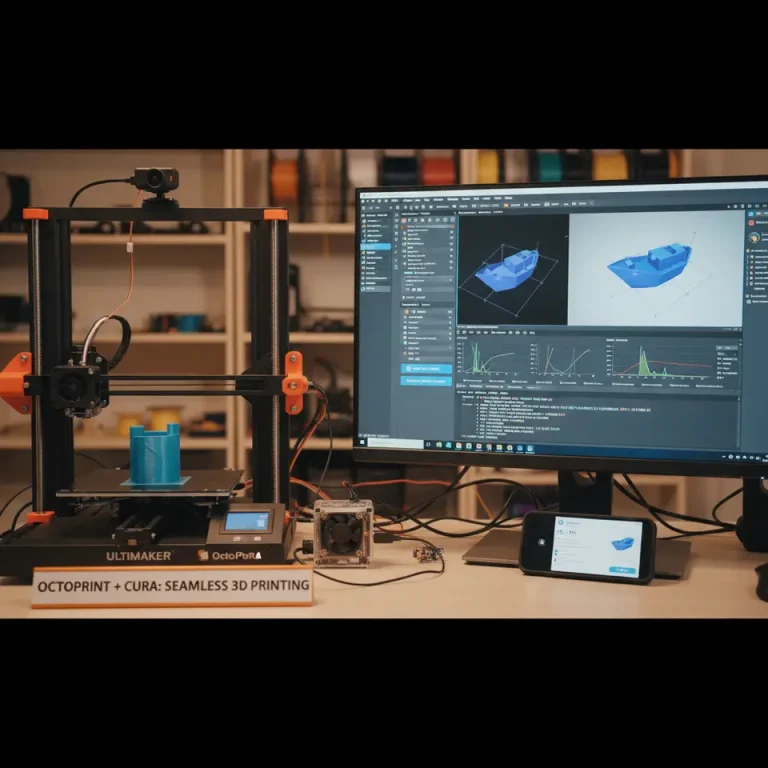
For studios that print dozens of parts daily, manual calibration after each filament change is inefficient. n8n, an open‑source workflow automation tool, can bridge Cura, your slicer, and your printer management system (e.g., OctoPrint).
7.1. Example Automation: “Auto‑Adjust Flow Rate on Filament Change”
- Trigger: OctoPrint webhook fires when a new filament profile is selected.
- Node 1 – Retrieve Filament Specs: Pull diameter and recommended flow rate from a Google Sheet containing your filament database.
- Node 2 – Update Cura Profile: Use CuraEngine’s CLI (
CuraEngine slice -j profile.json -o output.gcode) with the new flow rate value injected via JSON. - Node 3 – Notify: Send a Slack message to the team: “Flow rate updated to 96 % for Hatchbox PLA – ready for slicing.”
This eliminates the need for a manual “Flow Rate Test” every time you swap spools, while still maintaining precision.
7.2. Integrating Line Width Adjustments
You can create a second n8n workflow that:
- Detects the part type (e.g., “functional bracket”) from a tag in your print queue.
- Applies a pre‑defined line width profile (120 % for strength).
- Adjusts the flow rate automatically (divide by 1.20) before slicing.
Result: Each print is automatically optimized for its purpose, without the operator having to remember multiple Cura settings.
8. Putting It All Together: A Quick Reference Cheat Sheet
| Parameter | Default (Cura) | When to Adjust | How to Adjust |
|---|---|---|---|
| Flow Rate | 100 % | After filament change, after nozzle wear, after temperature shift | Measure wall thickness → use formula → update in Material → Flow → Flow Rate |
| Line Width | 100 % of nozzle | When you need faster prints (120 %) or higher detail (80 %) | Set Shell → Wall Line Width %; adjust Flow Rate proportionally |
| Outer Wall Flow | 100 % | To reduce blobs on outer surfaces | Lower by 5 % if you see “zits” |
| Temperature | Filament‑specific (e.g., 200 °C for PLA) | When extrusion looks too thin (raise) or too thick (lower) | Change in Material → Temperature |
| Print Speed | 60 mm/s (typical) | For fine details (slow) or large parts (fast) | Adjust in Speed tab; keep in mind that higher speed may need a slightly higher flow rate |
Tip: Keep a “Calibration Log” in a cloud spreadsheet. Record: filament brand, diameter, nozzle size, temperature, flow rate, line width, measured wall, and date. Over time you’ll spot trends and can pre‑populate Cura profiles for each material.
9. Next Steps & Resources
You now have a solid framework for mastering Understanding Flow Rate and Line Width in Cura. To keep the momentum going:
- Read our guide on Best Cura Settings for Ender 3 – perfect for beginners who want a one‑click profile.
- Explore our article on How to Fix Under‑Extrusion in Cura – a deeper dive into troubleshooting common extrusion problems.
- Visit our main page for more 3D printing tips, tutorials, and downloadable slicer profiles.
Call to Action
Ready to elevate your prints? Subscribe to our newsletter for monthly deep‑dives on slicer optimization, exclusive n8n workflow templates, and early access to new Cura profiles. Follow us on Twitter, Instagram, and LinkedIn to join a community of makers who never settle for “good enough.”
Start today: Download the free Flow Rate Calibration Sheet (PDF) from our resources hub and print your first calibrated cube tomorrow. Your prints will thank you!
Happy slicing, and may every layer be perfect!
The CuraSlicers.com Team