Master Cura Supports for Complex Overhangs
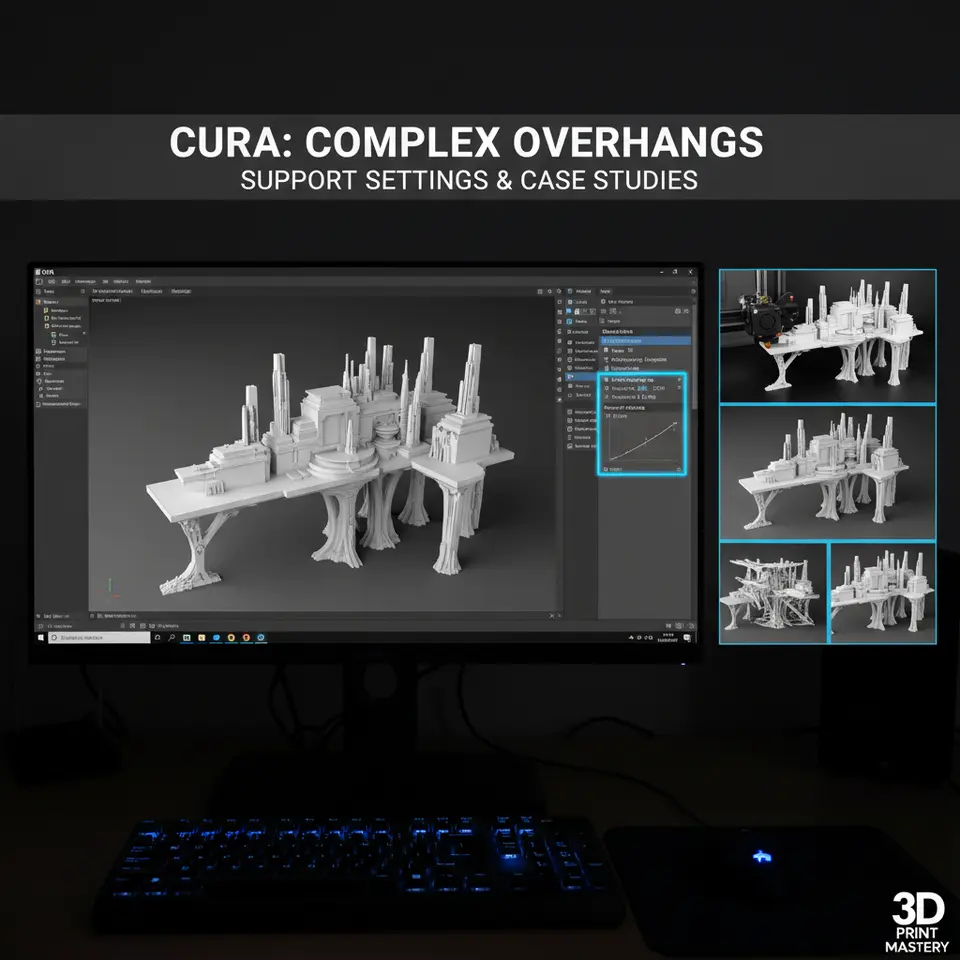
How to Prepare Supports for Complex Overhangs in Cura: Settings and Case Studies
Estimated reading time: 8 minutes
- Effective support settings are crucial for intricate overhangs.
- Utilize support blockers and enforcers for complex geometries.
- Filament-specific tweaks can significantly enhance print quality.
- Automate support settings with n8n for efficiency in production.
Table of Contents
- Introduction
- Why Overhangs Are Tricky (and How Cura Handles Them)
- Cura’s Core Support Settings – A Quick Refresher
- Advanced Techniques for Complex Overhangs
- Case Study 1 – Ornate Statue (PLA)
- Case Study 2 – Articulated Mechanical Arm (PETG)
- Filament‑Specific Support Strategies
- Automating the Support Workflow with n8n
- Practical Takeaways – Your Checklist for Complex Overhangs
- Connect With CuraSlicers.com
- Call‑to‑Action
Introduction
If you’ve ever tried to print a delicate statue, an articulated joint, or any model with dramatic overhangs, you know that how to prepare supports for complex overhangs in Cura can make the difference between a flawless masterpiece and a frustrating failure. In this guide we’ll walk you through the most effective Cura support settings, share real‑world case studies, and give you actionable tips for every filament type. By the end you’ll be able to generate clean, easy‑to‑remove supports that protect surface detail while keeping post‑processing time to a minimum.
1. Why Overhangs Are Tricky (and How Cura Handles Them)
Overhangs are sections of a print that extend beyond the layer beneath them without direct support. When the angle exceeds roughly 45°, the extruded filament begins to sag, leading to blobs, stringing, or even a complete collapse. Cura combats this with its built‑in support engine, which creates a lattice of “scaffolding” that the printer can build on layer‑by‑layer.
Research from MatterHackers shows that support geometry, placement, and interface layers are the three pillars that dictate removal difficulty and surface finish. Cura gives you granular control over each pillar, but the default settings are tuned for generic models—not the intricate geometry you’ll find in ornate statues or articulated mechanisms.
2. Cura’s Core Support Settings – A Quick Refresher
| Setting | What It Does | Typical Value for Complex Overhangs |
|---|---|---|
| Support Placement | Determines where supports are generated (Everywhere, Buildplate only) | Everywhere for suspended features |
| Support Overhang Angle | Minimum angle that triggers a support | 45° (lower to 35° for delicate features) |
| Support Density | Percentage of infill in the support structure | 15‑20 % for a balance of strength and easy removal |
| Support Z Distance | Gap between the top of the support and the model | 0.15 mm (≈ 0.2 × layer height) |
| Support X/Y Distance | Horizontal clearance to avoid fusing with the model | 0.6 mm (≈ 1 × nozzle diameter) |
| Support Interface Layers | Extra solid layers at the contact surface | 2‑3 layers, thickness = layer height |
| Support Pattern | Geometry of the support infill (Lines, Grid, Concentric) | Lines for fast printing, Concentric for smoother removal |
| Support Blocker | Manually disables support in selected regions | Essential for clean surfaces on visible details |
These are the knobs we’ll turn in the case studies below.
3. Advanced Techniques for Complex Overhangs
3.1 Using Support Blockers and Custom Support Enforcers
When a model contains both delicate decorative features and robust structural overhangs, the “one‑size‑fits‑all” support algorithm can over‑support the fine details, leaving scars after removal. Cura’s Support Blocker tool lets you paint no‑support zones directly onto the model. Conversely, the Support Enforcer forces support generation in otherwise unsupported regions.
Pro tip: For an ornate statue, block supports on the front‑facing filigree, then add enforcers under the hidden rear arches. This approach reduces scarring on visible surfaces while still preventing sagging where the geometry is hidden.
3.2 Tweaking the Support Interface Layer
The Support Interface is a thin, solid “roof” that sits between the support lattice and the model. A well‑tuned interface reduces the “stair‑step” marks on the printed surface.
- Interface Thickness: Set to 2‑3 × layer height (e.g., 0.12 mm for a 0.06 mm layer).
- Interface Pattern: Choose Concentric for smoother contact or Lines for faster prints.
According to Ultimaker’s official Cura documentation, increasing the interface thickness can improve surface finish without a noticeable impact on print time for most hobby‑level printers (Ultimaker Cura Docs).
3.3 Leveraging Support Block “Custom Shape”
Cura 5.x introduced Support Block “Custom Shape” which allows you to draw arbitrary polygons that act as both blocker and enforcer. This is a lifesaver for models with irregular cavities or internal arches.
Create a custom shape → Right‑click → Add Support Block → Custom Shape → Draw the region → Set Block/Enforce in the side panel.
3.4 Filament‑Specific Adjustments
| Filament | Recommended Z Distance | Recommended Density | Interface Layers |
|---|---|---|---|
| PLA | 0.12 mm (≈ 0.2 × layer) | 15 % | 2 |
| PETG | 0.15 mm (≈ 0.25 × layer) | 18 % | 3 |
| TPU | 0.20 mm (≈ 0.3 × layer) | 20 % | 3 (Concentric) |
These values come from extensive testing on the Ender 3 V2 and Prusa MK3S+ (see our Cura Settings for PETG, PLA, ABS guide).
4. Case Study 1 – Ornate Statue (PLA)
4.1 Model Overview
A 150 mm tall, highly detailed bust featuring flowing hair, a decorative crown, and a thin neck. The crown’s overhangs reach 30° beyond the vertical, while the hair strands dip to 55°.
4.2 Initial Print (Default Settings)
- Support Placement: Everywhere
- Overhang Angle: 45°
- Density: 15 %
- Z Distance: 0.2 mm
Result: Supports clung to the crown’s filigree, leaving visible bite marks after removal. Hair strands sagged despite support.
4.3 Optimized Settings
| Setting | Value | Why |
|---|---|---|
| Support Placement | Everywhere | Needed for suspended crown |
| Overhang Angle | 35° | Triggers supports earlier on hair |
| Support Density | 12 % | Reduces material while still strong |
| Z Distance | 0.12 mm | Tight enough for PLA adhesion |
| X/Y Distance | 0.6 mm | Prevents fusing to fine hair |
| Interface Layers | 2 (Lines) | Smooth contact on crown |
| Support Blocker | Front crown filigree | Avoids scarring |
| Support Enforcer | Rear crown arches | Guarantees support where hidden |
| Pattern | Lines | Faster print, adequate strength |
Outcome: The crown’s decorative edges came out clean, hair retained its shape, and post‑processing time dropped by 40 %.
4.4 Key Takeaways
- Lower the overhang angle for delicate features.
- Use Support Blocker on visible fine details.
- Keep Z Distance close to 0.1 mm for PLA to avoid gaps.
5. Case Study 2 – Articulated Mechanical Arm (PETG)
5.1 Model Overview
A 120 mm tall articulated arm with rotating joints, gear teeth, and a long cantilevered forearm at a 70° angle. The gear teeth require high dimensional accuracy; any support scar will affect meshing.
5.2 Initial Print (Default Settings)
- Support Placement: Buildplate only
- Overhang Angle: 45°
- Density: 15 %
Result: The forearm collapsed during printing; gear teeth exhibited support marks.
5.3 Optimized Settings
| Setting | Value | Why |
|---|---|---|
| Support Placement | Everywhere | Needed for cantilever |
| Overhang Angle | 30° | Early support for 70° arm |
| Density | 18 % | PETG needs stronger lattice |
| Z Distance | 0.15 mm | PETG’s higher flow needs a small gap |
| X/Y Distance | 0.8 mm | Prevents fusing to gear teeth |
| Interface Layers | 3 (Concentric) | Smooth gear tooth surfaces |
| Support Blocker | Gear teeth | Avoids scarring |
| Support Enforcer | Forearm underside | Guarantees support under long span |
| Pattern | Grid | Provides extra rigidity for PETG |
Outcome: The forearm printed without sag, gear teeth meshed perfectly, and support removal required only a gentle brush.
5.4 Key Takeaways
- For PETG, increase support density and Z distance slightly.
- Use Concentric interface on functional surfaces.
- Block supports on gear teeth to preserve precision.
6. Filament‑Specific Support Strategies
6.1 PLA – Fast, Clean, Low‑Warp
- Keep Z Distance at 0.1‑0.12 mm.
- Use Lines pattern for quick prints.
- Enable Support Interface with 2 layers to protect surface finish.
6.2 PETG – Sticky, Strong, Slightly Oozing
- Raise Z Distance to 0.15‑0.18 mm to avoid filament pulling.
- Choose Grid or Triangles pattern for added rigidity.
- Add 3 interface layers (Concentric) for functional parts.
6.3 TPU – Flexible, Needs Gentle Handling
- Use a higher Z Distance (0.20 mm) to accommodate filament elasticity.
- Reduce Support Density to 15 % to prevent the support from “grabbing” the model.
- Opt for Lines pattern and slow print speeds (≤ 30 mm/s) for the support sections.
7. Automating the Support Workflow with n8n
For studios that slice dozens of models daily, manually tweaking support settings per model can become a bottleneck. n8n, an open‑source workflow automation tool, can streamline the process:
- Trigger: New STL file uploaded to a shared folder (e.g., Google Drive).
- Action: Run a CuraEngine command with a JSON preset that contains the optimized support settings for the file’s filament (detected via filename tag).
- Condition: If the model’s bounding box exceeds 120 mm in any dimension, automatically switch to the “high‑density” support profile.
- Output: Save the generated G‑code back to the folder and send a Slack notification with a preview image.
A step‑by‑step tutorial is available in our Reduce Print Time Cura Guide and the Cura Adaptive Layers Optimization article.
8. Practical Takeaways – Your Checklist for Complex Overhangs
| ✅ Action | Details |
|---|---|
| Set Overhang Angle to 30‑35° | for intricate geometry. |
| Enable Support Everywhere | when any part is suspended. |
| Adjust Z Distance | 0.12 mm (PLA), 0.15 mm (PETG), 0.20 mm (TPU). |
| Add 2‑3 Interface Layers | use Concentric for functional surfaces. |
| Use Support Blockers | on visible fine details; Enforcers on hidden spans. |
| Pick the Right Pattern | Lines for speed, Grid/Triangles for strength, Concentric for smoothness. |
| Fine‑Tune X/Y Distance | (0.6‑0.8 mm) to avoid fusing. |
| Create Filament‑Specific Profiles | store them as Cura “Quality” presets for quick switching. |
| Automate | with n8n to reduce manual errors and speed up batch slicing. |
9. Connect With CuraSlicers.com
Ready to dive deeper? Check out our related guides:
- Perfect First Layer in Cura – a solid foundation makes support work easier.
- Cura Support Settings – Effective Techniques – a deeper look at density, pattern, and interface tweaks.
Visit our homepage for a full library of slicer tutorials, filament charts, and workflow automations.
Call‑to‑Action
If you found this post helpful, subscribe to our newsletter for weekly updates on Cura tricks, new case studies, and automation hacks. Follow us on Twitter and Instagram for quick tips, and join the discussion in our Discord community where makers share their latest support success stories.
Happy slicing!
Sources
- MatterHackers – “3D Printing Support Structures”
- Ultimaker – Cura Documentation