Advanced Cura Brim Techniques for Tiny Prints
Cura Slicer Advanced Brim Strategies for Tiny Parts to Prevent Tipping
Estimated Reading Time: 5 minutes
- Understanding the roles: Learn the differences between skirts and brims.
- Optimized settings: Discover crucial Cura settings for better adhesion.
- Custom brim shapes: Create tailored brim designs for unique parts.
- Effective cleanup: Use recommended tools for easy removal of prints.
Table of Contents
- Understanding the Importance of Brims and Skirts
- Cura Settings for Optimized Adhesion
- Custom Brim Shapes for Uniquely Shaped Parts
- Cleanup Tips for Smooth Removal
- Comparison Photos: Before and After
- Conclusion and Further Reading
- FAQ
Understanding the Importance of Brims and Skirts
Before diving into the details, let’s clarify what skirts and brims are and their roles in 3D printing.
- Skirt: A skirt is a line that goes around the part but does not touch it. It serves as a primer for the nozzle, allowing it to extrude filament properly before starting the print. While it doesn’t directly help with adhesion, it can indicate whether the printer is set up correctly.
- Brim: A brim is a flat layer of extruded filament that extends from the base of the printed part. It increases the surface area that sticks to the print bed, significantly improving adhesion. This is especially beneficial for tiny or intricate parts that might tip over if not securely anchored.
In this post, we’ll cover how to optimize the brim settings in Ultimaker Cura to enhance your 3D printing experience, especially for small components.
Cura Settings for Optimized Adhesion
When dealing with tiny parts, the default settings in Cura may not always suffice. Adjusting the following settings can enhance the effectiveness of your brim:
1. Enable Brim
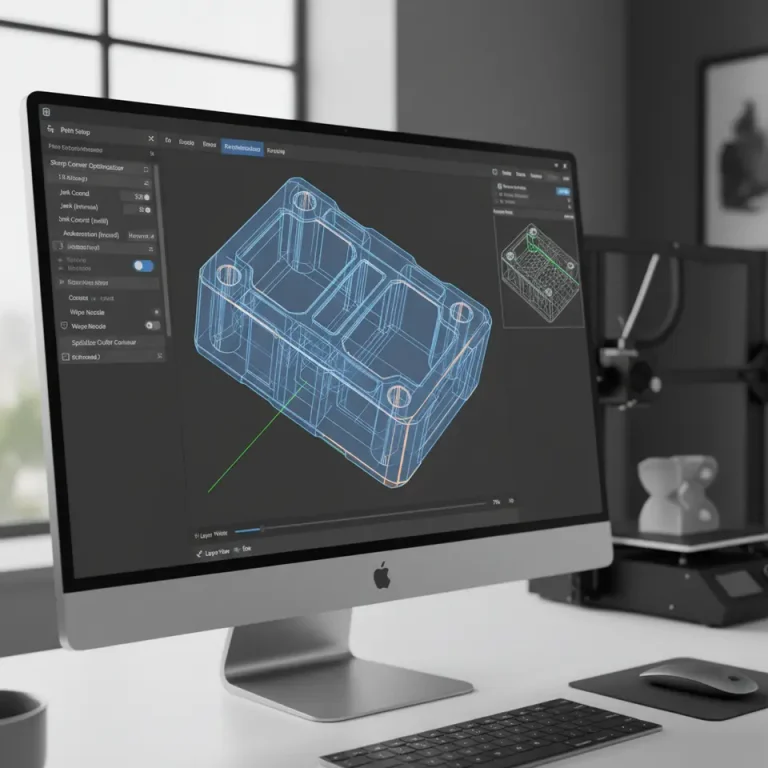
To start, you will need to enable the brim feature in Cura. You can do this by navigating to the Build Plate Adhesion settings within the Cura interface and selecting Brim.
2. Brim Width
Recommended Setting: 5 to 10 mm
The width of the brim influences its ability to hold down the part. For small components, increasing the brim width can provide much-needed stability.
3. Brim Line Count
Recommended Setting: 5 to 10 lines
Increasing the number of lines can add further stability. More lines mean more material anchoring the part to the print bed, reducing the likelihood of tipping.
4. Layer Height
Recommended Setting: Lower layer heights (0.1 mm to 0.2 mm)
A lower layer height allows for better adhesion between layers, especially important for small parts that might not have a large footprint.
5. Print Speed
Recommended Setting: 40-60 mm/s
Slowing down the print speed, particularly during the initial layers, can enhance adhesion through better filament bonding.
Custom Brim Shapes for Uniquely Shaped Parts
In cases where standard brim shapes aren’t enough, Cura allows for custom brim shapes. Using the Custom Support settings, you can create a contour around your part, particularly for irregular shapes.
Steps to Create a Custom Brim Shape
- Select Your Model: Choose your STL file and make sure it is correctly oriented.
- Enable Supports: Navigate to the Support settings and click on Custom.
- Draw the Support Shape: Utilize the curve and polygon tools to create a custom shape that will surround your small part.
This method is especially useful for unique designs where a typical brim might not provide adequate support.
Cleanup Tips for Smooth Removal
Once your print is complete, the next step is removing it from the print bed. Here are some recommended tools and techniques:
Recommended Removal Tools
- Spatula: A thin spatula or scraper can be beneficial for prying the brim off the print bed without damaging your small part.
- Pliers: For brims that are particularly stubborn, using needle-nose pliers can help grip and pull the brim away without affecting the print.
Post-Print Cleanup
To avoid leftover brim material sticking to your print:
- Warm Water Bath: Soak your print in warm water for a few minutes to soften the brim plastic, making it easier to remove.
- X-Acto Knife: For any remnants, a precision knife can be used to carefully trim off any unwanted brim bits around your printed part.
Comparison Photos: Before and After
Including photos of prints with and without an adequately set brim can greatly illustrate the difference in print quality and stability. Ensure to take pictures from various angles to showcase how brims can stabilize tiny parts effectively.

Conclusion and Further Reading
Using Cura slicer advanced brim strategies for tiny parts to prevent tipping is a powerful method to enhance your 3D printing experience. By understanding the implications of brims, skirts, and custom support shapes, as well as optimizing your printer settings, you’re well on your way to achieving flawless prints.
If you’re looking for more tips on improving your 3D print quality, check out our guides on Cura Speed vs. Quality Profiles and Perfect First Layer Settings in Cura.
For additional resources and updates in the 3D printing world, don’t forget to visit our main page at CuraSlicers.com. And remember to follow us on social media for the latest tips and tutorials!
By implementing these advanced brim strategies, you’ll not only enhance the quality of your small prints but also reinforce your overall 3D printing skills. Happy printing!
FAQ
What is the purpose of a brim in 3D printing?
A brim increases the surface area for better adhesion, preventing small parts from tipping.
How do I set up a custom brim in Cura?
You can create a custom brim by using the Custom Support settings to draw a shape around your model.
What tools are recommended for removing prints with a brim?
Tools like a thin spatula and needle-nose pliers are ideal for safely removing brims without damaging the print.