Hidden Cura Features to Boost Print Quality
Top 10 Hidden Cura Features You Didn’t Know About – Unlock Pro‑Level Control and Faster Workflows
Estimated Reading Time: 8 minutes
- Discover hidden features of Cura that enhance your printing experience.
- Learn to implement advanced settings for optimal print quality.
- Streamline your workflow with post-processing scripts and custom settings.
- Utilize tools to reduce material usage and improve surface finishes.
- Bookmark this guide for easy access to pro-level tips.
Table of Contents
- Introduction
- Top 10 Hidden Cura Features You Didn’t Know About
- 1. Per‑Model Settings
- 2. Custom Post‑Processing Scripts
- 3. Lighting Infill
- 4. Adaptive Layer Height
- 5. Flow Rate Calibration Wizard
- 6. Support Blocker and Enforcer Brushes
- 7. Seam Positioning
- 8. Draft Shield
- 9. Print Sequence
- 10. Cura’s Built‑In Experimental Settings Panel
- Putting It All Together – A Sample Workflow
- Why CuraSlicers.com Is Your Best Resource
- Frequently Asked Questions (FAQ)
- Actionable Takeaways – Your 5-Step Checklist
- Call to Action
Introduction
If you spend any time in Ultimaker Cura you’ve probably mastered the basics – layer height, infill density, and print speed. Yet “Top 10 Hidden Cura Features You Didn’t Know About” remain under the radar, even for seasoned makers. These tucked‑away tools—like per‑model settings, custom post‑processing scripts, and the new “Lighting Infill” option—can dramatically improve surface finish, reduce print failures, and streamline your entire workflow.
In this deep‑dive we’ll explore each hidden gem, explain the science behind it, and give you concrete Cura settings you can copy‑paste today. By the end, you’ll be able to squeeze every millimeter of performance out of your printer while keeping your workflow smooth and repeatable.
Quick win: Bookmark this post and refer back whenever you open Cura. The hidden features we cover are all native to Cura 4.13+ and require no third‑party plugins.
Top 10 Hidden Cura Features You Didn’t Know About
Below is a concise, yet exhaustive, list of the most powerful but overlooked Cura functions. Each section includes a short description, why it matters for print quality, and step‑by‑step instructions to enable it.
1. Per‑Model Settings (Advanced Settings per Object)
What it is: Cura lets you assign different slicing parameters to individual models on the same build plate. Instead of a one‑size‑fits‑all profile, you can tailor wall thickness, infill, or support settings per object.
Why it matters:
- Hybrid prints: Combine a dense, high‑strength core with a lightweight lattice shell in a single build.
- Material mixing: Print a PLA prototype alongside a TPU flexible hinge without swapping filaments.
How to enable:
- Select a model → click the “Per Model Settings” button (gear icon) in the right‑hand panel.
- Click “Add Settings” and choose any parameter (e.g., Wall Line Count, Infill Density).
- Adjust the value and watch Cura instantly recalculate the slice for that object only.
Pro tip: Use per‑model settings to apply a 0.8 mm nozzle wall on functional parts while keeping a 0.4 mm wall on decorative sections. This saves material and reduces print time without sacrificing strength where it counts.
Reference: Ultimaker’s official guide on per‑model settings explains the workflow in detail – see the documentation here.
2. Custom Post‑Processing Scripts
What it is: Cura includes a built‑in Post‑Processing tab where you can inject G‑code snippets or run external scripts after slicing.
Why it matters:
- Automated bed leveling: Insert a G‑code command to run a mesh‑bed‑leveling routine before every print.
- Dynamic temperature ramps: Apply a custom temperature curve based on the current layer height.
How to enable:
- Open the “Extensions → Post Processing → Modify G‑Code” menu.
- Click “Add a script” and select “ChangeAtZ” (or “Pause at Height”).
- Define the layer or Z‑height trigger and paste your custom G‑code (e.g.,
M104 S210 ; set hotend temp for top layers).
Pro tip: Combine with n8n automation to push the generated G‑code file to a cloud storage bucket, then trigger a webhook on your OctoPrint instance for remote start.
3. Lighting Infill (New in Cura 4.13)
What it is: A visual infill preview that simulates how light will travel through the printed part, helping you spot weak spots before printing.
Why it matters:
- Structural insight: Identify regions where infill density is too low for the expected load.
- Aesthetic preview: See how translucent filaments (e.g., PETG, Clear PLA) will look when illuminated.
How to enable:
- In the “View” menu, toggle “Lighting Infill”.
- Adjust the Infill Transparency slider for a clearer view.
Pro tip: Use this view when designing functional prototypes that will be printed with transparent resin or clear PETG. It helps you decide whether to increase Infill Overlap (found under Infill → Infill Overlap).
4. Adaptive Layer Height (Variable Layer Thickness)
What it is: Cura can automatically vary layer height based on model geometry, using finer layers for steep slopes and thicker layers for flat surfaces.
Why it matters:
- Surface finish: Reduces stair‑stepping on curved surfaces without increasing overall print time dramatically.
- Material savings: Keeps thicker layers where detail isn’t needed, conserving filament.
How to enable:
- Open “Custom” settings → search for “Adaptive Layers”.
- Set “Enable Adaptive Layers” to On, then define “Minimum Layer Height” (e.g., 0.06 mm) and “Maximum Layer Height” (e.g., 0.2 mm).
Pro tip: Pair adaptive layers with “Print Speed – Wall” set to a slower speed (e.g., 30 mm/s) for the fine layers, and a faster speed (e.g., 70 mm/s) for the coarse layers. This balances quality and speed.
5. Flow Rate Calibration Wizard
What it is: An interactive wizard that guides you through a filament‑flow test directly from Cura, generating a custom flow multiplier.
Why it matters:
- Dimensional accuracy: Eliminates over‑ or under‑extrusion that leads to gaps or blobs.
- Consistency across filaments: Quickly calibrate new material spools.
How to enable:
- Click “Extensions → Calibration → Flow Rate”.
- Follow the on‑screen prompts: print the test cube, measure the wall thickness, and input the value. Cura will auto‑generate a new Flow setting.
Pro tip: Keep the generated flow multiplier in a Cura profile named after the filament brand (e.g., “PLA‑Generic‑Flow‑101%”) for future prints.
6. Support Blocker and Enforcer Brushes
What it is: Visual brushes that let you paint where supports should or shouldn’t be generated, right on the 3D model.
Why it matters:
- Reduced post‑processing: Avoid supports on delicate features like logos or thin walls.
- Optimized material usage: Only generate supports where absolutely needed.
How to enable:
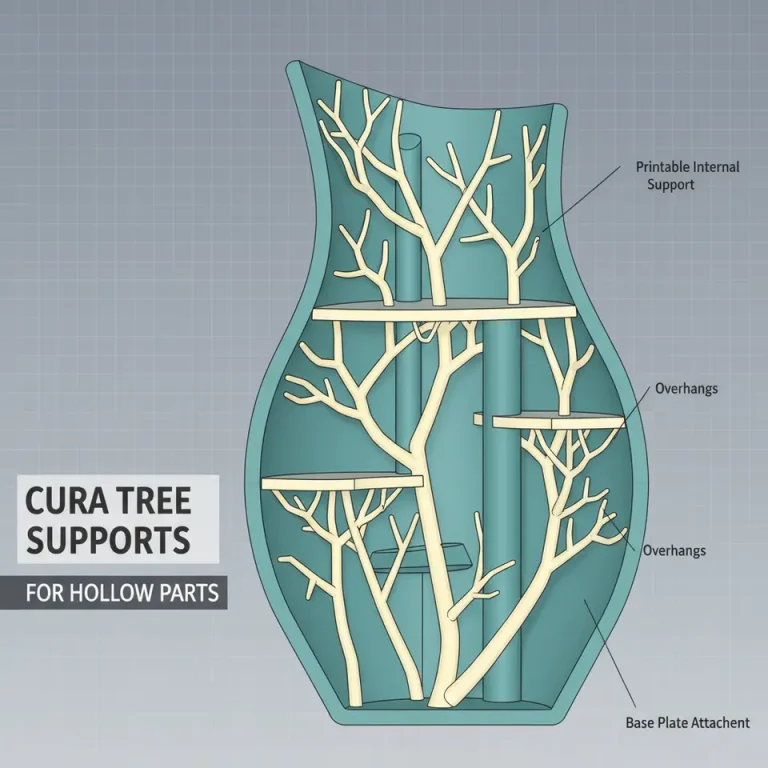
- In the “Support” tab, enable “Support Blocker” and “Support Enforcer”.
- Click the brush icon, choose a radius (e.g., 2 mm), and paint on the model.
Pro tip: For tall, slender parts, use a “Support Enforcer” with a “Support Z Distance” of 0.15 mm to create a dense, detachable support column that’s easy to remove.
7. Seam Positioning – “Random” vs “User Defined”
What it is: Cura can automatically vary the start point of each outer wall (the “seam”) to hide the line that appears where the extruder begins a layer.
Why it matters:
- Aesthetic improvement: Randomizing seams reduces visible lines on cylindrical objects (e.g., vases, bottles).
- Print strength: Placing seams on less critical surfaces avoids weakening load‑bearing walls.
How to enable:
- In “Shell” → “Seam Position”, select “Random” or “User Defined”.
- If you choose User Defined, click the “Seam Marker” on the model to set the exact location.
Pro tip: For functional parts where the seam could be a stress concentrator, set the seam to the bottom of the part (where it’s hidden by the build plate) by selecting “Rear” and rotating the model accordingly.
8. Draft Shield (Customizable Protective Envelope)
What it is: A thin, optional wall that surrounds the part during printing, protecting it from drafts or temperature fluctuations.
Why it matters:
- Warp reduction: Especially useful for ABS, PETG, or large prints on open‑frame printers.
- Surface cleanliness: Prevents dust or debris from landing on the print mid‑run.
How to enable:
- Enable “Draft Shield” under the “Build Plate Adhesion” section.
- Choose “Enabled” and set the “Shield Gap” (e.g., 5 mm).
Pro tip: Combine Draft Shield with “Enclosure Temperature” (if your printer has one) for optimal ABS results. The shield adds only ~10 % extra material but can cut warping by half, according to a study on 3DPrint.com.
9. “Print Sequence” – “One at a Time” vs “All at Once”
What it is: Cura can print multiple objects either sequentially (one after another) or simultaneously (layer‑by‑layer).
Why it matters:
- Reduced oozing: Printing one object at a time eliminates cross‑contamination of filament strings between parts.
- Better heat management: Large prints can be split into smaller chunks to avoid overheating the hotend.
How to enable:
- In “Print Setup → Print Sequence”, select “One at a Time”.
- Optionally enable “Complete Objects” to finish each model before moving to the next.
Pro tip: For a batch of small calibration cubes, use “One at a Time” with “Z Hop When Retracted” enabled (0.2 mm). This eliminates the “stringing” that often appears when the nozzle jumps between objects.
10. Cura’s Built‑In “Experimental” Settings Panel
What it is: A hidden panel that houses bleeding‑edge features like “Spiralize Outer Contour” (vase mode), “Ironing”, and “Dynamic Overhang Support”.
Why it matters:
- Cutting‑edge quality: Ironing can smooth the top surface of a print, while Dynamic Overhang Support reduces material usage on steep angles.
- Future-proofing: As Cura evolves, many experimental options become standard. Getting comfortable now gives you a head‑start.
How to enable:
- Click the gear icon in the top‑right corner of the settings pane.
- Choose “Settings Visibility → Expert” and then “Show Experimental Settings”.
Pro tip: Turn on “Ironing” for prints that need a glossy top (e.g., phone stands). Set “Ironing Flow” to 95 % and “Ironing Speed” to 30 mm/s for a smooth finish without extra post‑processing.
Putting It All Together – A Sample Workflow
Below is a practical, end‑to‑end workflow that leverages five of the hidden features above. Use it as a template for your next multi‑material or high‑detail print.
| Step | Feature | Settings | Outcome |
|---|---|---|---|
| 1 | Per‑Model Settings | Model A: Wall Thickness = 1.2 mm, Infill = 20 % Model B: Wall Thickness = 0.6 mm, Infill = 5 % | Optimized material usage per part |
| 2 | Adaptive Layer Height | Min = 0.06 mm, Max = 0.2 mm, Threshold = 0.15 mm | Fine detail on curves, faster flat sections |
| 3 | Custom Post‑Processing Script | Add script “Pause at Z = 50 mm” → G‑code M600 (filament change) | Seamless multi‑color prints without manual intervention |
| 4 | Support Blocker/Enforcer | Blocker on logo area, Enforcer on overhang > 45° | Clean surfaces, minimal support waste |
| 5 | Draft Shield | Enabled, Gap = 5 mm | Reduced warping on PETG, especially for tall parts |
Result: A hybrid print that combines a sturdy core, a lightweight shell, multi‑color transitions, and a flawless top surface—all achieved without leaving Cura.
Why CuraSlicers.com Is Your Best Resource
At CuraSlicers.com we’ve distilled years of hands‑on testing into easy‑to‑follow guides, video tutorials, and downloadable Cura profiles. Our “Best Cura Settings for Ender 3” guide (see internal link) walks you through baseline settings, while the “Advanced Cura Profile Tweaks for High‑Resolution Prints” article dives deeper into the exact numbers we used in the workflow above.
Explore more:
• Best Cura Settings for Ender 3
• Advanced Cura Profile Tweaks for High‑Resolution Prints
These resources complement the hidden features discussed here, giving you a complete toolbox from beginner to pro.
Frequently Asked Questions (FAQ)
Q1. Will enabling experimental settings void my printer warranty?
A: No. Experimental settings only affect the G‑code Cura generates; they do not alter firmware. However, always test new settings on a small print first.
Q2. Can I export my per‑model settings to share with teammates?
A: Yes. After slicing, click File → Export → Export Settings. The resulting .json file contains all per‑model overrides.
Q3. How does “Lighting Infill” differ from the regular infill preview?
A: Lighting Infill simulates light transmission through the part, highlighting low‑density zones that may be structurally weak. It’s purely visual and does not affect the sliced G‑code.
Q4. Is the Flow Rate Calibration Wizard accurate for flexible filaments?
A: It works best with rigid filaments (PLA, PETG, ABS). For TPU, combine the wizard with a “Pressure Advance” test (available in Cura 5.0+).
Q5. Does the Draft Shield add significant print time?
A: Only about 5‑10 % extra time, depending on shield thickness. The trade‑off is far fewer warps, especially on large ABS prints.
Actionable Takeaways – Your 5-Step Checklist
- Enable Per‑Model Settings for any multi‑material or mixed‑strength build.
- Add a Post‑Processing Script to automate filament changes or temperature ramps.
- Turn on Lighting Infill to visually verify structural integrity before printing.
- Activate Adaptive Layer Height for a perfect balance of speed and surface finish.
- Experiment with Draft Shield + Support Blocker to eliminate warping and unwanted supports.
Save this checklist as a note in your slicer or on a physical whiteboard near your printer. Small habit changes lead to big quality gains.
Call to Action
Ready to put these hidden Cura features into practice? Visit our homepage at https://curaslicers.com for a full library of step‑by‑step tutorials, downloadable profiles, and the latest Cura updates.
- Subscribe to our newsletter for weekly tips and exclusive workflow automations using n8n.
- Follow us on Instagram and Twitter @CuraSlicers for quick video demos and community challenges.
- Leave a comment below sharing which hidden feature surprised you the most – we love hearing your success stories!
Let’s push the boundaries of what Cura can do together. Happy slicing!