Top Free Tools for Mesh Repair in Cura Slicer
Cura Slicer Mesh Repair Techniques: Best Free Tools and How to Use Them
Estimated reading time: 5 minutes
- Learn the importance of mesh repair in 3D printing
- Explore the top free tools available for mesh repair
- Follow step-by-step instructions for effective repairs
- Optimize your models for better slicing and printing
Table of Contents
- Understanding Mesh Issues
- Why Use Mesh Repair Tools?
- Best Free Mesh Repair Tools
- Practical Takeaways for Cura Slicing
- Call to Action
- FAQ
Understanding Mesh Issues
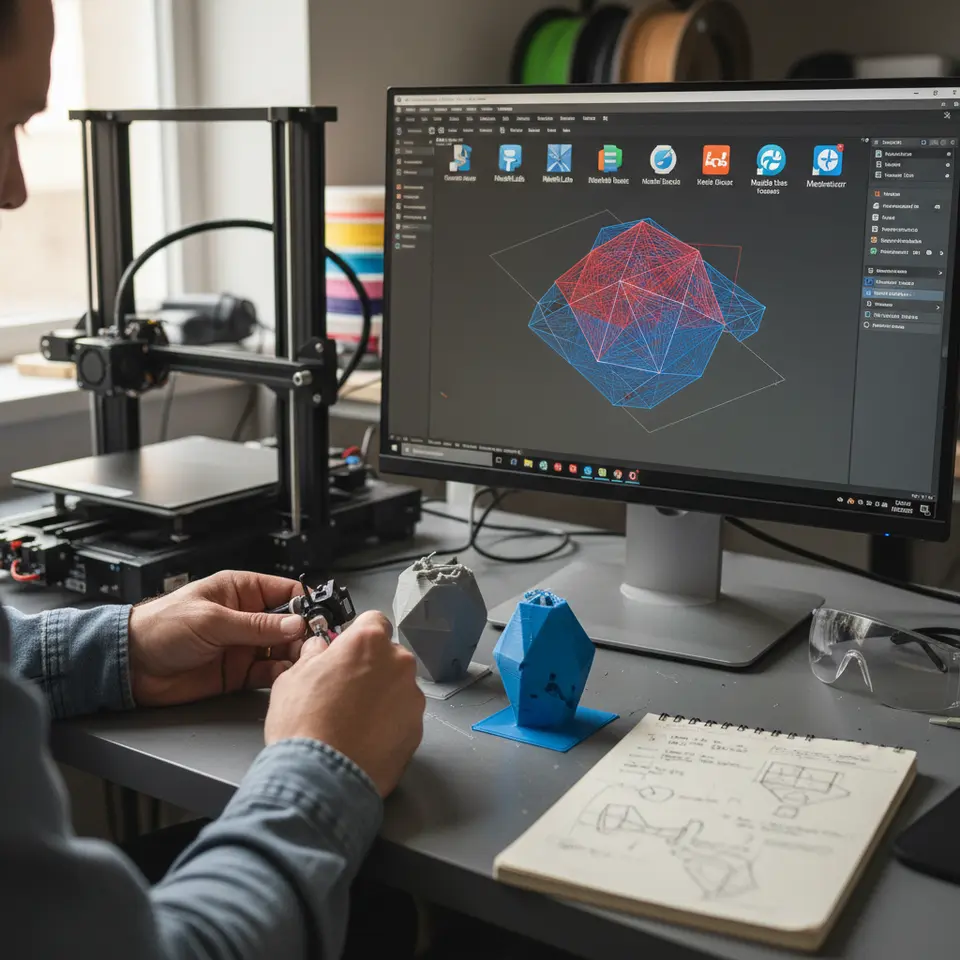
Before we dive into the repair techniques, it’s crucial to understand what mesh issues entail. A 3D model consists of surfaces that intersect to create a solid object in a virtual space. However, if there are errors in the model, such as non-manifold edges (where a vertex is connected by more than two edges) or intersecting geometries (where parts of the model overlap unintentionally), these will lead to slicing errors in software like Ultimaker Cura. Fixing these errors can significantly enhance the quality of your prints and prevent failed print jobs.
Why Use Mesh Repair Tools?
Using mesh repair tools allows you to correct these errors before they affect your slicing and printing processes. By ensuring that your model is free from defects, you can save time and resources, avoid misprints, and achieve better print quality. In this guide, we will cover three popular and free tools: Meshmixer, Netfabb Online, and Blender. Each has distinct advantages and interfaces, making them suitable for varying levels of expertise and specific repair needs.
Best Free Mesh Repair Tools
1. Meshmixer
Meshmixer is a powerful tool from Autodesk with a user-friendly interface tailored for mesh manipulation. It is excellent for repairing meshes, sculpting, and preparing STL files for 3D printing.
How to Use Meshmixer for Mesh Repair:
- Open your Model: Launch Meshmixer and open your 3D model file by selecting File > Import.
- Analyze the Mesh: Use the Analysis feature to check your model for errors. Select Analysis > Inspector. This tool will highlight the areas that require repair.
- Automatic Repairs: Click on the highlighted areas, and the Inspector will prompt you to repair them. Select Fix to allow Meshmixer to handle basic non-manifold edges automatically.
- Manual Adjustments: For complex issues, use the Sculpt tool to manually edit the mesh. You can smooth, inflate or otherwise manipulate the geometry to fix stubborn problems.
2. Netfabb Online
Netfabb Online is a cloud-based application that provides effective mesh repair capabilities without needing software installation.
How to Use Netfabb Online for Mesh Repair:
- Upload Your Model: Go to the Netfabb Online website and create a free account if you don’t already have one. Upload your STL or OBJ file.
- Repair Menu: Once uploaded, choose Repair from the main menu. Netfabb automatically scans for issues, including holes, bad borders, and overlapping meshes.
- Apply Repairs: You can choose to apply all suggested fixes or individually address each problem. Confirm your choices, and download the repaired model once completed.
3. Blender
Blender is an open-source 3D modeling suite that can also be used for mesh repair. While it has a steeper learning curve than the previous tools, its extensive features allow for detailed mesh manipulation.
How to Use Blender for Mesh Repair:
- Import Your Model: Open Blender and import your model via File > Import > STL.
- Edit Mode: Switch to Edit Mode by pressing Tab. Use the selection tools to highlight problematic vertices, edges, or faces.
- Merge Vertices: To fix non-manifold edges, select vertices and press M to merge them. Choose Merge at Center or Merge by Distance to eliminate duplicate vertices.
- Delete Loose Geometry: If there are intersecting geometries, select the unwanted pieces and hit X to delete them. Using the Knife Tool or Boolean Modifiers can also help in fixing complex intersections.
Practical Takeaways for Cura Slicing
Once you’ve repaired your mesh using one of the above tools, it’s time to slice your model in Ultimaker Cura. Before doing so, consider these time-saving tips for batch repairs and print optimization:
- Batch Uploading: Use software that allows batch uploading of several STL files at once to streamline your workflow.
- Repair Multiple Files: Tools like Netfabb allow repairs on multiple STL files in one go without the need for repetitive manual repairs.
- Cura Settings for Problematic Models: Adjust your Cura settings based on your mesh complexity. For intricate designs, consider reducing layer height to enhance print quality or using an adaptive slicing method for efficient printing.
To further improve your workflow, refer to our guide on Cura Speed and Quality Profiles for tips on balancing print speed with quality.
Call to Action
With the tips and tools discussed in this blog post, you can confidently repair your 3D models and improve your printing success. If you found this guide helpful, be sure to explore more of our detailed posts at CuraSlicers.com. Follow us on social media for regular updates on 3D printing, Cura slicer settings, and new tutorials. Subscribe to our newsletter for the latest guides delivered straight to your inbox!
By mastering mesh repair techniques using tools like Meshmixer, Netfabb Online, and Blender, you’ll significantly enhance your 3D printing experience and make the most of what Ultimaker Cura has to offer. Happy printing!
FAQ
What are non-manifold edges?
Non-manifold edges occur when a vertex in a 3D model connects to more than two edges, creating ambiguity in the mesh. This can lead to problems in slicing and should be repaired for successful prints.
Can I use these mesh repair tools together?
Yes, you can use multiple tools to leverage their strengths. For instance, you could use Meshmixer for sculpting and Netfabb Online for automated repairs.
Is there a cost for using these tools?
All the mentioned tools are free to use, though some might offer premium features or require account creation for full access.