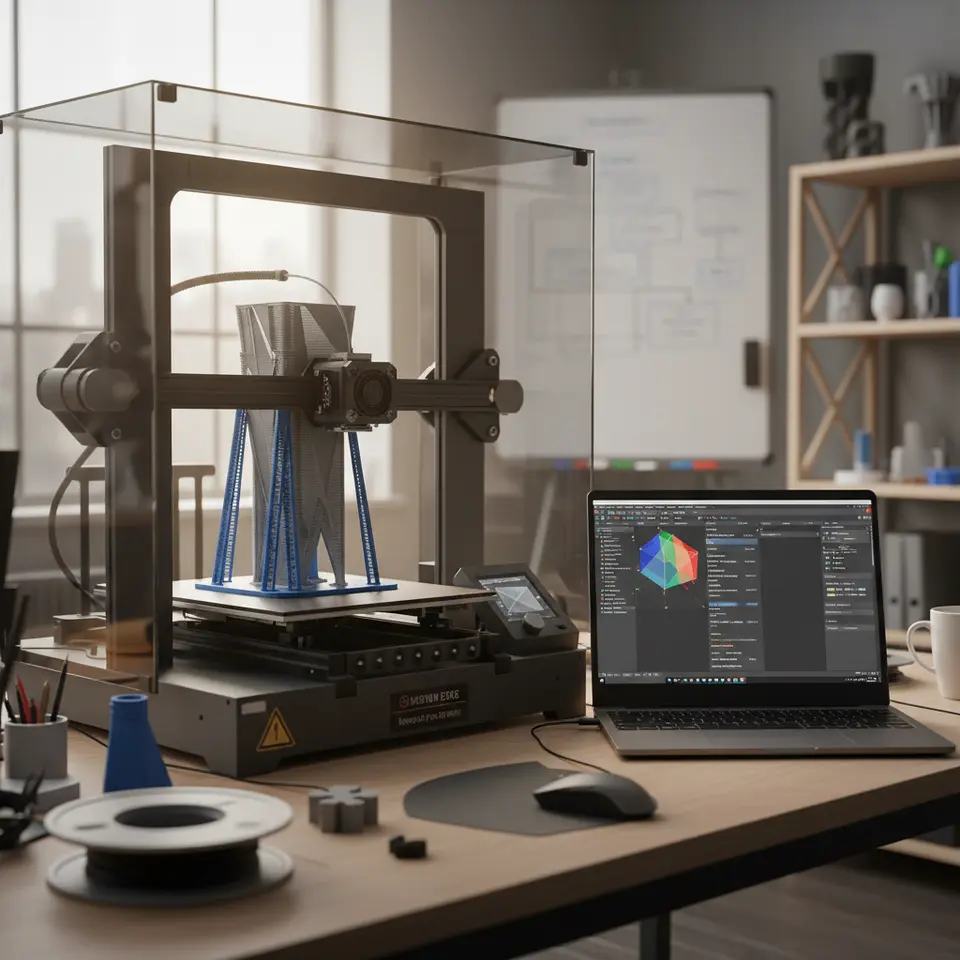
Enhance Long-Print Reliability with Cura Settings
How to Slice for Long-Print Reliability: Settings to Survive 24+ Hour Prints
Estimated Reading Time: 6 minutes
- Understand common challenges of long 3D prints.
- Implement effective settings for slicing and printing.
- Use recovery features to minimize risks of power loss.
- Optimize cooling and ensure proper layer adhesion.
- Establish print farm SOPs if managing multiple printers.
Table of Contents
- Understanding the Challenges of Long Prints
- The Essential Checklist for Long Prints
- Recommended Cura Profile Settings for Long Prints
- Conclusion
- FAQ
Understanding the Challenges of Long Prints
Long 3D prints, while exciting, can also lead to several common failure modes, including:
- Power Loss Recovery: Power interruptions can cause a print to fail entirely if the printer does not have a recovery feature.
- Filament Run-Out: Running out of filament mid-print can lead to incomplete models.
- Cooling Strategies: Insufficient cooling can lead to warping and poor layer adhesion.
- Adhesion Problems: Poor bed adhesion can cause prints to lift or detach entirely during printing.
- Print Farm SOPs: In a production environment, having standard operating procedures (SOPs) is essential for managing multiple long prints across various machines.
Understanding these challenges is crucial to effectively manage long prints, as addressing them early can save time, resources, and frustration.
The Essential Checklist for Long Prints
1. Power-Loss Recovery
One of the most vital features for long prints is power-loss recovery. Many modern printers offer this option that allows the printer to remember the last position before the power outage. If your printer supports this:
- Enable Power-Loss Recovery in your slicer’s settings.
- Consider using an uninterruptible power supply (UPS) as an extra measure.
For a detailed insight into how to adjust your settings for power-loss recovery, check out our guide on enabling power-loss recovery in Cura.
2. Filament Run-Out Detection
Running out of filament mid-print can lead to complete failure. To combat this:
- Install a Filament Run-Out Sensor: These sensors can automatically pause the print when filament is low or depleted.
- Use Multiple Filaments: If applicable, keep a backup filament spool ready to minimize downtime.
3. Cooling Strategies
Cooling plays a critical role in achieving reliable prints, especially for long prints. Follow these tips to ensure optimal cooling:
- Increase Fan Speed: In Cura, set your fan speed to a higher percentage during long prints. A dedicated cooling fan can significantly improve layer adhesion.
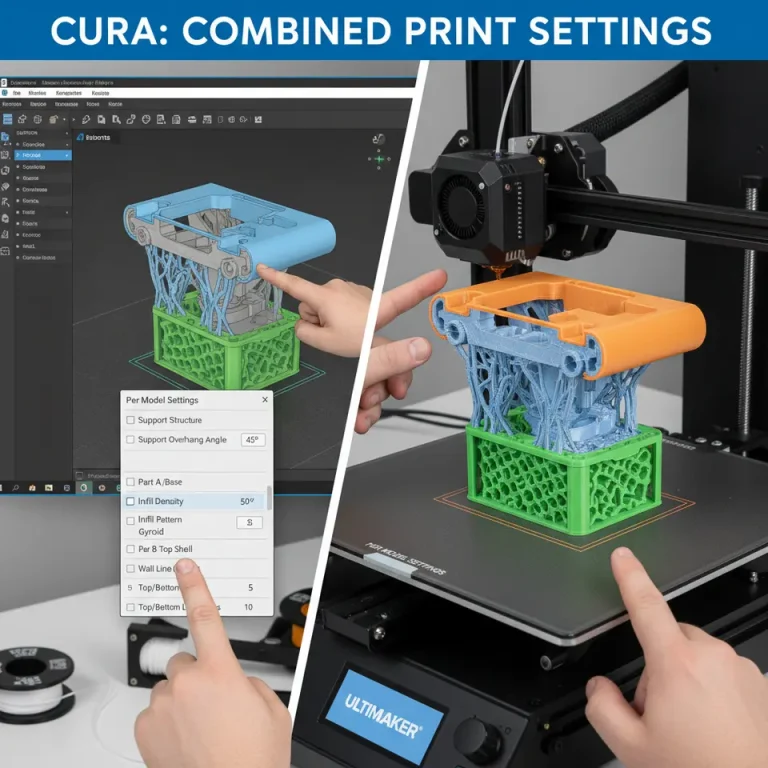
- Use a Cooling Modifier: Consider applying a cooling modifier on parts of the model that may need extra cooling to prevent warping.
For better cooling setups, refer to our article on Cura temperature profiles to optimize your print’s cooling phase.
4. Layer Adhesion and Profile Selection
Using conservative settings can greatly enhance layer adhesion and print quality. Here’s what to consider:
- Slow Down Print Speeds: Reducing your print speed from the typical 50-60 mm/s to around 30-40 mm/s can improve layer adhesion and increase accuracy.
- Increase Layer Height: For long prints, consider using a layer height of 0.2 mm or more; this reduces print time and allows for better adhesion.
- Use Adaptive Layers: Utilizing adaptive layer features in Cura can ensure optimal layer thickness based on model geometry.
Explore our tips for layer height and speed optimization in our guide on Cura layer height and speed optimization.
5. Adhesion Solutions
Adhesion issues can derail your long printing sessions. Implement the following methods to secure prints on the build plate:
- Use a Good Adhesive: Applying glue stick, tape, or specialized adhesion sprays can help improve the initial layer adhesion.
- Increase First Layer Height and Speed: A slower first layer can help it adhere better. Use a first layer speed of around 20 mm/s while increasing the first layer height to improve adhesion.
For additional tips on ensuring a successful first layer, visit our guide on achieving a perfect first layer in Cura.
6. Establishing Print Farm SOPs
If you’re running multiple 3D printers, it’s crucial to have SOPs in place:
- Set Regular Monitoring Intervals: Monitor each printer for at least 10-15 minutes after starting a long print.
- Document Any Issues: Keeping an active log of any failures or issues during long prints can help identify common problems over time.
- Schedule Preventive Maintenance: Periodically service your printers to keep them running smoothly.
Recommended Cura Profile Settings for Long Prints
To help you get started, here’s a recommended profile to consider for long prints:
Basic Settings
- Layer Height: 0.2 mm
- Print Speed: 40 mm/s
- Infill Density: 15-20%
- Supports: Use Tree Supports for better support reliability and easier removal.
Advanced Settings
- Build Plate Adhesion Type: Use a Brim or Raft, depending on the model’s specifications.
- Cooling: Fan speed set to 100% after the first layer, with cooling transition after every few layers.
These settings are conservative and can be adjusted based on your material and printer capabilities. Remember to perform test prints to fine-tune settings tailored for your specific project.
Conclusion
Mastering the art of slicing for long-print reliability is essential for anyone looking to tackle extensive 3D printing projects. By understanding the common challenges, employing effective strategies, and implementing optimized Cura settings, you enhance your chances of achieving successful long-term prints. Don’t be afraid to experiment with these settings and discover what works optimally for your specific printer and materials.
For more insights on achieving the best results with Ultimaker Cura, be sure to explore our other articles, including our detailed guides on slicer settings, print optimization, and more relevant topics. Visit our homepage at CuraSlicers.com for a wealth of knowledge in 3D printing.
FAQ
- What is power-loss recovery in 3D printing? It is a feature that allows the printer to resume printing from the last saved position after a power interruption.
- How can I improve filament run-out detection? By installing a filament run-out sensor that can pause your print when filament is low.
- Why is cooling important for long prints? Insufficient cooling can result in layer adhesion issues and warping during long printing sessions.
- What settings can enhance adhesion on long prints? Using a good adhesive, increasing the first layer height, and adjusting the first layer speed can improve adhesion.
- How do I create effective SOPs for multiple printers? Ensure regular monitoring, document issues, and schedule preventive maintenance.