How Moisture Affects Cura Extrusion Settings
Estimated reading time: 7 minutes
Key Takeaways:
- Moisture can cause filament swelling, affecting extrusion calculations.
- Increased moisture content can lead to printing issues such as bubbling and poor layer adhesion.
- Effective storage and drying techniques are crucial for filament management.
- Adjusting Cura settings in response to moisture levels can enhance print quality.
- Utilizing advanced Cura features can help counteract moisture-related problems.
Table of Contents:
The Impact of Moisture on Filament and Print Quality
Moisture content can significantly influence the behavior of 3D printing filaments. When filaments absorb water, several detrimental effects can occur:
- Increased Diameter: Moisture can cause filament to swell, resulting in a larger effective diameter. This fluctuation can lead to over-extrusion if the printer’s flow rate isn’t adjusted accordingly. The calibrated settings in Cura may assume a constant filament diameter, thereby miscalculating the amount needed for extrusion.
- Bubbling and Spitting: Water vapor can convert rapidly into steam during the melting process in the hotend. This can create bubbles and uneven extrusion, leading to weak or poor-quality prints. The consistent and uniform flow of filament is crucial, as any interruption could affect layer adhesion and overall structural integrity.
- Dimensional Accuracy: Moisture content can affect how well filaments adhere to each other. This adhesion is critical when printing multi-part assemblies or any model requiring precise interlocking parts. Too much moisture can cause inconsistent layer bonding, leading to warping or print failure.
- Surface Finish and Aesthetic Quality: Affected by moisture, the surface quality of the print can change significantly. It may result in a rough finish, which can be particularly problematic for aesthetics. This surface irregularity can necessitate additional finishing processes to achieve the desired appearance.
How Cura’s Extrusion Calculations Work
Ultimaker Cura calculates extrusion based on several parameters: flow rate, line width, and layer height. Each of these factors is interrelated and can be adjusted to improve print quality for different filament types. Here’s a closer look at how moisture impacts these settings:
- Flow Rate: The flow rate, typically measured in mm³/s, indicates how much filament is extruded through the nozzle over a given time. If the moisture content alters the filament’s effective density, it can require recalibrating the flow rate. Higher moisture usually demands a reduced flow rate to avoid over-extrusion.
- Line Width: Cura’s line width setting determines how thick each line of filament will be. If the filament swells due to moisture, making it effectively thicker, you might need to adjust this setting manually to compensate for the changes in performance.
- Print Speed: Higher moisture content also necessitates careful consideration of print speed. Slower speeds can help mitigate issues related to bubbled filament and allow the hotend to better manage the added moisture in the filament.
Practical Solutions for Managing Filament Moisture
To ensure optimal performance from Cura and your 3D printer, it’s essential to manage filament moisture. Here are some practical steps to follow:
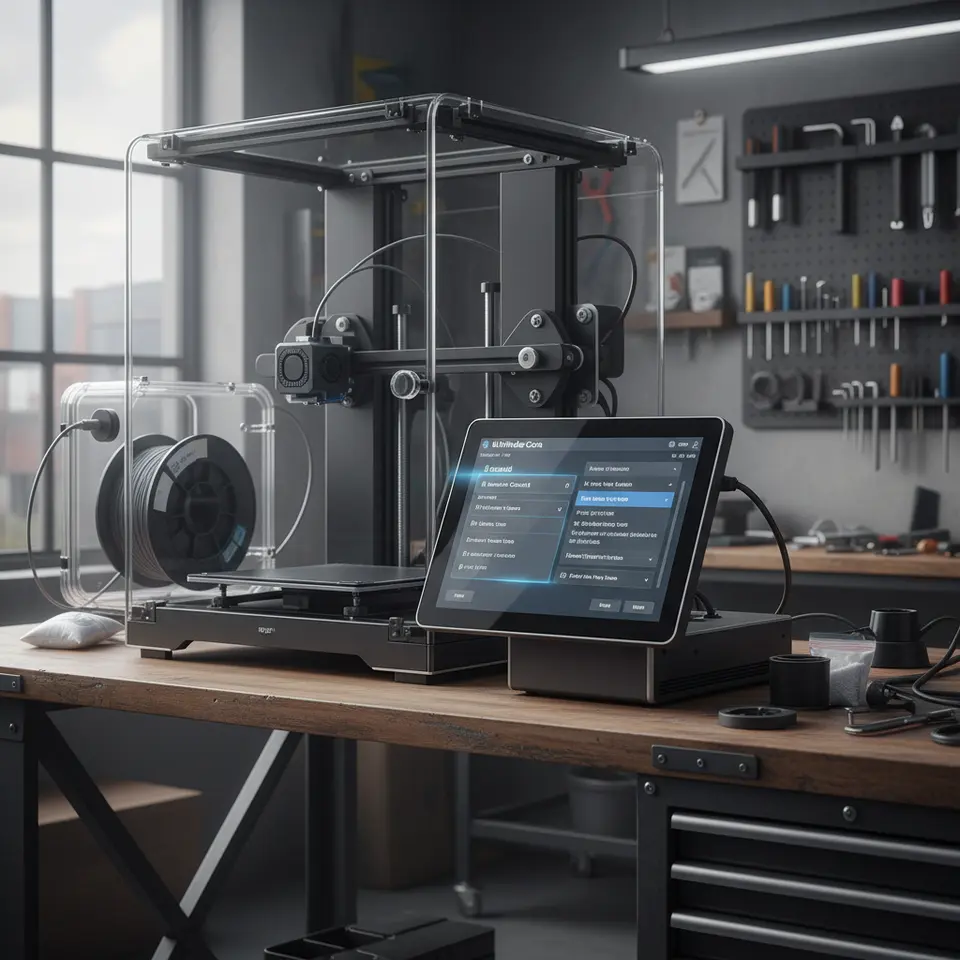
- Proper Storage: Store filaments in airtight containers with desiccants to maintain a low humidity environment. Vacuum-sealed bags or dedicated filament dry boxes can help keep moisture levels in check.
- Drying Filaments Before Use: If you suspect your filament has absorbed moisture, consider using a filament dryer. Standard oven methods can also work for certain materials, but ensure you follow temperature guidelines for specific types of filaments. For example, PLA can be dried at 45°C for 4–6 hours, while PETG may require more careful handling due to its glass transition temperature.
- Adjust Cura Settings: Before starting a print, you may need to adjust the aforementioned Cura settings to compensate for any variation in moisture content. Test prints can be valuable here to determine the best settings for your specific filament conditions.
- Monitor Print Performance: Keep a close eye on your prints, especially during initial layers, to gauge potential issues linked to moisture. Signs of bubbling or uneven layers are indicators that your filament may be too moist.
Utilizing Cura’s Advanced Settings
For users looking to further optimize their prints in Cura, exploring advanced settings can make a significant difference. A few settings to consider include:
- Adaptive Layers: This feature allows the printer to adjust the layer height based on model geometry, which can help with variable filament behavior due to moisture.
- Flow Rate Adjustments: Implementing flow rate adjustments for specific models can counteract issues arising from moisture without needing to re-calibrate the entire print profile.
- Temperature Management: Adjust the print temperature based on the moisture level of the filament. A slightly higher printing temperature can help mitigate some moisture-related extrusion problems.
Utilizing these adjustments in combination with consistent storage and drying practices will result in better quality prints with fewer defects and improved adherence to specifications.
Conclusion
Understanding how moisture content affects Cura extrusion calculations is pivotal for anyone serious about 3D printing. By managing filament moisture effectively and making the necessary adjustments in Cura, users can prevent common pitfalls that lead to miscalculations in flow rate, line width, and dimensional accuracy.
For further reading and resources, you can explore our guides on Optimizing Cura for Small Cosmetic Prints and Cura’s Experimental Settings.
Additionally, it’s beneficial to stay updated on best practices and ongoing trends within the 3D printing community. Visit our main page for more tips and guides that can elevate your 3D printing experience: CuraSlicers.com.
Be sure to keep an eye on your filament storage and preparation processes—your next great print is just around the corner! If you find this article useful, consider following CuraSlicers on social media or subscribing for more insights and guides dedicated to optimizing your 3D printing workflow.
For detailed information on filament characteristics and their moisture sensitivity, you can refer to the Ultimaker’s official documentation that provides more in-depth knowledge about various 3D printing materials and their behaviors.
FAQ
Q: How can I tell if my filament has absorbed moisture?
A: Signs of bubbling during extrusion and uneven surface finishes may indicate moisture absorption in filament.
A: Signs of bubbling during extrusion and uneven surface finishes may indicate moisture absorption in filament.
Q: What is the best method to dry filament?
A: Using a filament dryer or following specific oven drying parameters for each filament type is recommended.
A: Using a filament dryer or following specific oven drying parameters for each filament type is recommended.
Q: Can moisture-sensitive filaments be used at all?
A: Yes, but careful management of storage conditions and print settings is necessary to ensure quality outputs.
A: Yes, but careful management of storage conditions and print settings is necessary to ensure quality outputs.