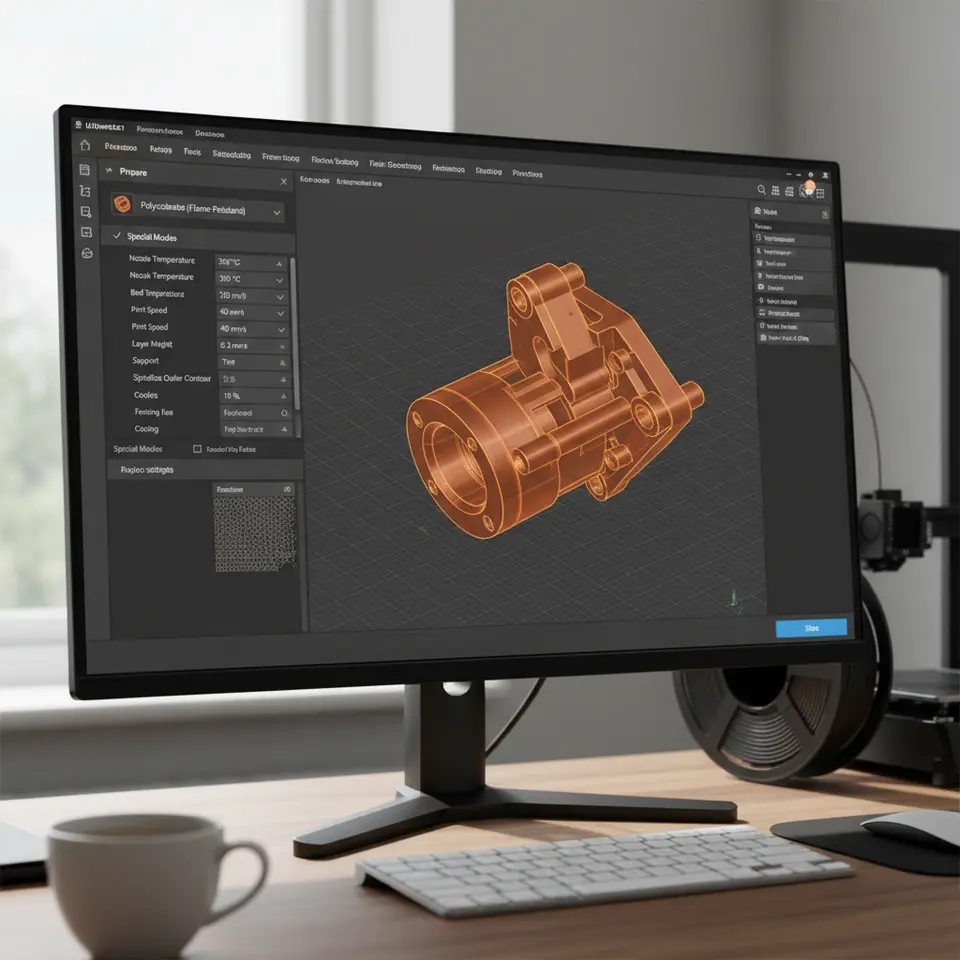
Cura Slicer Settings for Flame-Retardant Filaments
Estimated reading time: 6 minutes
Key Takeaways:
- Flame-retardant filaments require specific Cura slicer settings for optimal performance.
- Adjust print temperature and cooling settings to avoid issues like warping and cracking.
- Regular maintenance of the printer is crucial for safe and effective printing.
Table of Contents:
Understanding Flame-Retardant Filaments
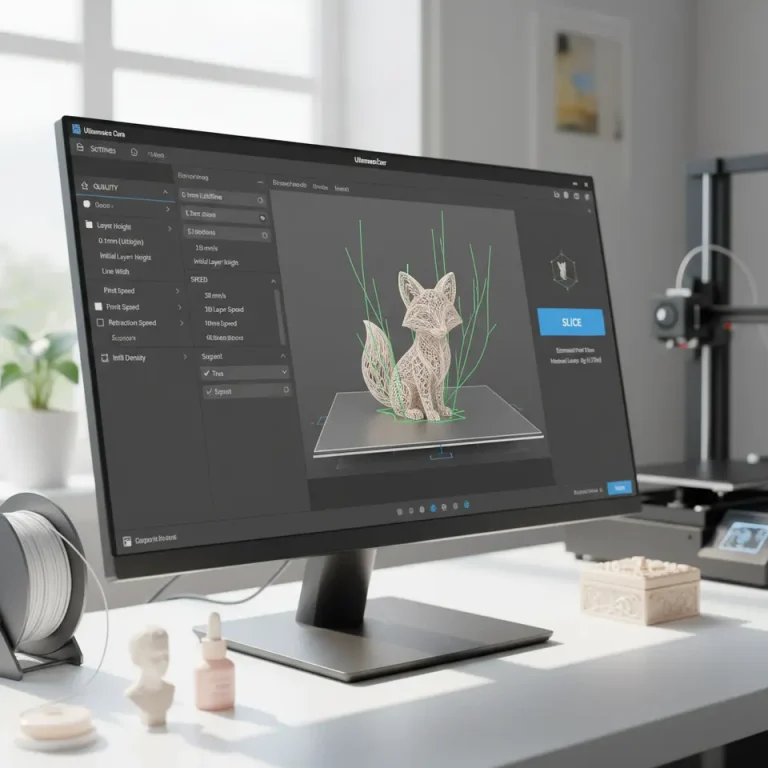
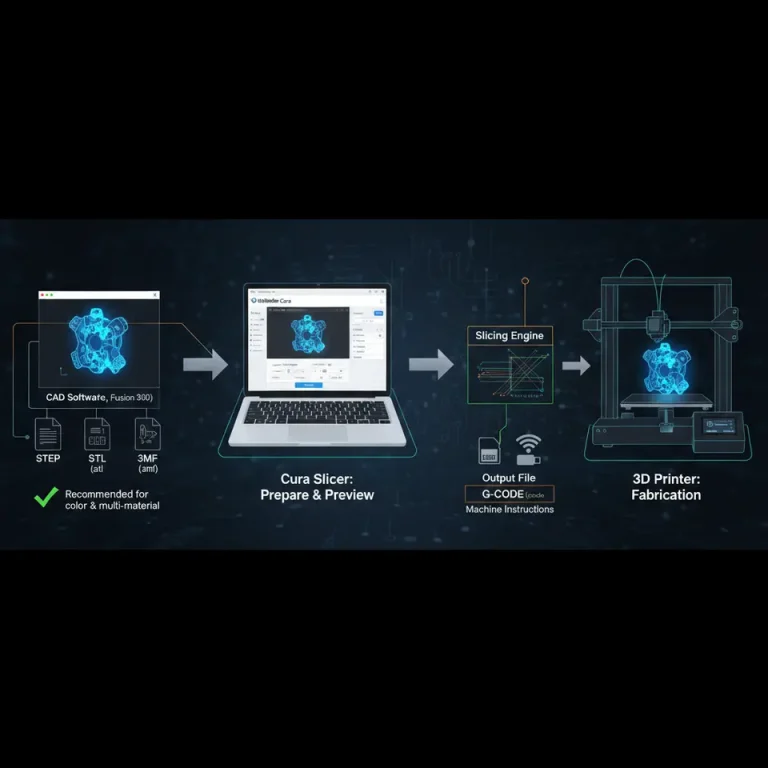
Flame-retardant filaments are specifically designed to meet fire safety standards, making them suitable for applications where heat resistance is crucial. Commonly used in automotive, aerospace, and electrical housings, these materials can significantly enhance the safety of 3D-printed parts. However, printing with such filaments may require adjustments to slicing settings in Ultimaker Cura.
Referencing the official Cura documentation provides insights into settings and techniques that can enhance the performance of FR filaments during the slicing process.
Key Considerations for Slicing Flame-Retardant Filaments
Before diving into specific Cura settings, it’s crucial to consider the following factors when working with flame-retardant materials:
- Printing Temperature: Flame-retardant filaments typically require higher extrusion temperatures. For example, polycarbonate (PC) often prints best between 260°C to 300°C. Adjust your nozzle temperature in Cura accordingly to achieve optimal layer adhesion without compromising the material’s flame-retardant properties.
- Bed Temperature: A heated print bed is vital for materials like PC, as it helps prevent warping. Setting a bed temperature between 80°C to 120°C can help ensure proper adhesion and minimize the risk of lifting during printing.
- Cooling Settings: It’s essential to fine-tune the cooling settings when slicing FR materials. While most filaments benefit from cooling fans, certain flame-retardant filaments may require reduced cooling to avoid cracking. Experiment with fan speeds between 0% to 50% for optimal results.
- Nozzle Size: Depending on the filament, using a larger nozzle (e.g., 0.4 mm or greater) can help reduce clogging issues and ensure a consistent extrusion of the thicker, more viscous filament.
Essential Cura Settings for Flame-Retardant Filaments
Here are recommended Cura slicer settings for effective printing with flame-retardant filaments:
Layer Height
Using a layer height of 0.2 mm to 0.3 mm is advisable for flame-retardant materials. Thicker layers can improve print speed without compromising surface quality.
Wall Thickness
A wall thickness of 1.2 mm (approximately three wall lines) can provide enough strength while ensuring that the material’s flame-retardancy is maintained in the part’s structure.
Infill Density and Pattern
Setting the infill to 20% to 30% with a grid or cubic pattern generally suffices for creating robust parts without unnecessary weight. For applications where strength is crucial, consider increasing this percentage.
Temperature Tower
To optimize print quality, consider integrating a temperature tower as part of your print. This strategy helps determine the specific temperature range for optimal printing quality by slowly varying the temperature throughout the print.
Adapting Other Cura Profiles
While the above settings are effective, enhancements can further tailor the profiles for specific FR materials. For example, if you are printing small cosmetic parts, the fine-tuning of settings such as the speed can support better surface finish. You can read more about this in our article on Optimizing Cura for Small Cosmetic Prints.
Using Experimental Settings
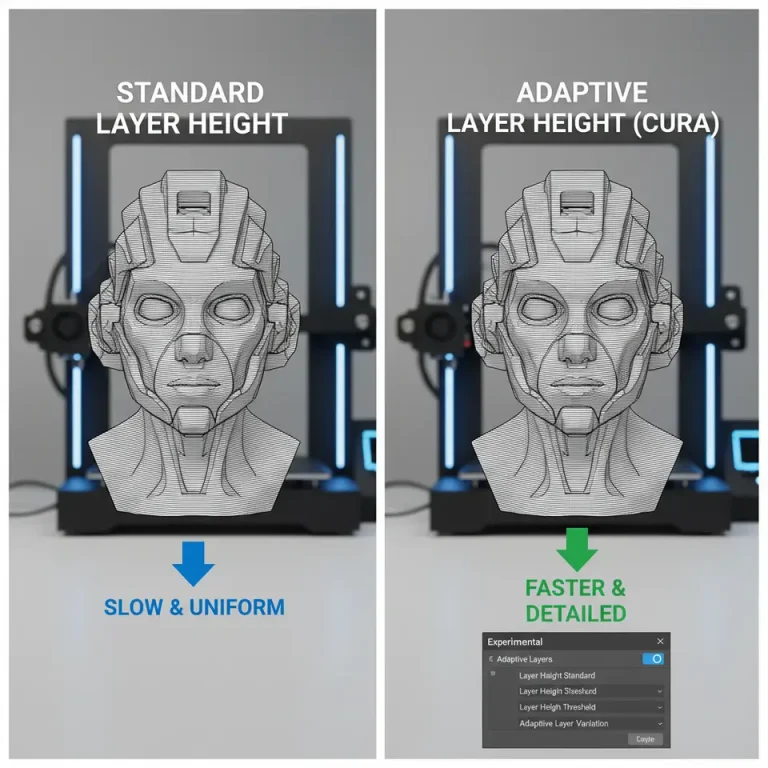
Cura includes several experimental settings that cater to advanced users working with specialized materials. Settings such as Adaptive Layers can improve print quality and speed by adjusting layer height dynamically. It is advisable to test these settings incrementally to see how they behave with your selected flame-retardant filament.
Preventive Maintenance for Safety
Before starting your print, ensure that your 3D printer is properly maintained:
- Ensure the printer is clean and free from any residual materials that could cause extruder jams.
- Use a nozzle size that pairs well with the filament type and avoid any wear that could affect print quality.
- Consider an enclosure if you’re working with ABS or other materials that emit fumes during printing. This creates a contained environment that regulates temperature and reduces the risk of fire hazards.
Troubleshooting Common Issues
- Poor Adhesion: If you experience poor adhesion, increasing the initial layer height, bed temperature, and using an adhesive like glue stick can help.
- Warping: Increase your bed temperature and make sure the bed is leveled correctly. Using supports or a brim can also mitigate warping.
- Stringing: Lowering the print temperature and increasing retraction speed can help reduce stringing issues with flame-retardant filaments.
- Clogging: If you notice frequent clogs, consider increasing the nozzle temperature or using a larger nozzle size.
Conclusion
When it comes to Cura slicer profiles for flame-retardant filaments, understanding the unique requirements of your materials is paramount for achieving high-quality prints safely. By adjusting slicer settings such as layer height, wall thickness, infill density, and temperature management, you can optimize your prints to meet functional and safety standards.
For further learning, keep exploring our resources. You can check out our detailed guide on Cura Slicer Bridging and Cantilevering Strategies which can enhance your understanding of structural integrity during your 3D prints.
We encourage you to visit our homepage for more insights on 3D printing and stay ahead in this exciting field. Furthermore, subscribe to our blog and follow us on social media to catch the latest trends, tips, and updates in the 3D printing industry!
Additionally, if you want to dive deeper into the art of slicing or learn about specifics of various filaments including their applications or properties, explore the external resource from 3D Printing Knowledge Base, which can offer more comprehensive insights into the world of 3D printing!
Happy printing!