Stream G‑Code from Cura to OctoPrint and Monitor Prints
How to Set Up OctoPrint with Cura to Stream G‑Code and Monitor Prints – A Complete Step‑by‑Step Guide
Estimated reading time: 8 minutes
- Learn how to automate your 3D printing workflow with OctoPrint and Cura.
- Understand the necessary prerequisites for setting up OctoPrint.
- Discover troubleshooting tips for common connection issues.
- Ensure the security of your remote printing environment.
- Explore automation possibilities with n8n.
Table of Contents
- 1. Prerequisites – What You Need Before You Begin
- 2. Enable the OctoPrint Plugin in Cura
- 3. Create an OctoPrint Connection Profile in Cura
- 4. Generating an OctoPrint API Key
- 5. Configuring Cura Slicing Settings for Seamless Streaming
- 6. Sending the G‑Code – One‑Click Workflow
- 7. Real‑Time Monitoring – From Cura to Your Phone
- 8. Troubleshooting Common Connection Issues
- 9. Security Best Practices – Keep Your Prints Safe
- 10. Automating the Workflow with n8n (Optional Advanced Step)
- 11. Practical Takeaways – Quick Checklist
- Frequently Asked Questions
How to Set Up OctoPrint with Cura to Stream G‑Code and Monitor Prints
Below is a systematic, SEO‑friendly roadmap that covers everything you need to know. Feel free to bookmark this page and refer back whenever you add a new printer or upgrade your software.
1. Prerequisites – What You Need Before You Begin
| Item | Recommended Version | Why It Matters |
|---|---|---|
| Ultimaker Cura | 5.2 or newer | Supports the built‑in OctoPrint plugin and the new “Connect to OctoPrint” workflow. |
| OctoPrint Server | 1.8.x (latest stable) | Provides the API endpoint Cura talks to. |
| Raspberry Pi (or similar) | Pi 4 with 4 GB RAM, running OctoPrint‑OctoPi image | Ensures reliable network connectivity and enough processing power for live video streaming. |
| Network | Same LAN for initial setup; optional VPN/HTTPS for remote access | Guarantees low latency and secure communication. |
| USB cable | Correct connector for your printer | Needed for OctoPrint to control the printer. |
If you haven’t installed OctoPrint yet, start with the official OctoPi image: https://octoprint.org/download/. The installer includes the web UI, webcam support, and the API we’ll use later.
2. Enable the OctoPrint Plugin in Cura
Cura ships with an OctoPrint plugin, but it may be disabled by default.
- Open Cura → Marketplace (top‑right gear icon).
- Search for OctoPrint. Click Install if the button is present.
- Restart Cura to load the plugin.
Tip: If you can’t find the plugin, make sure you’re using Cura 5.0 or newer – older releases required a manual plugin download.
3. Create an OctoPrint Connection Profile in Cura
Once the plugin is active, you’ll see a new OctoPrint tab in the printer settings panel.
- Add a New Printer → Choose your printer model (or “Custom”).
- In the OctoPrint tab, click Add Connection.
- Fill in the fields:
| Field | Example | Explanation |
|---|---|---|
| Name | “Home Lab OctoPrint” | Friendly identifier for multiple printers. |
| OctoPrint URL | http://192.168.1.42 (or https://myprinter.duckdns.org) | The address of your OctoPrint server. Use https:// if you’ve set up TLS (highly recommended). |
| API Key | Paste from OctoPrint | Allows Cura to authenticate. |
| Upload Mode | Print Immediately (or Upload Only) | Choose whether Cura should start the print after uploading. |
| Auto‑Connect | ✅ | Cura will attempt to connect each time you open the project. |
Source: Ultimaker’s official documentation explains the fields in depth – see their guide for more details.
4. Generating an OctoPrint API Key
- Log into OctoPrint’s web UI.
- Click the Settings (wrench icon) → API.
- If you don’t have a key yet, click Generate. Copy the 32‑character string.
Security note: Treat the API key like a password. Do not share it publicly or commit it to version control.
5. Configuring Cura Slicing Settings for Seamless Streaming
While Cura can stream any g‑code, certain settings improve reliability and print quality when sending directly to OctoPrint.
| Setting | Recommended Value | Reason |
|---|---|---|
| Print Speed | 60 mm/s (or lower for large parts) | Faster speeds can cause buffer overruns on low‑powered OctoPrint boards. |
| Layer Height | 0.2 mm for PLA, 0.15 mm for PETG | Balances detail and file size. |
| Initial Layer Speed | 20 mm/s | Improves first‑layer adhesion, especially when the printer is remote. |
| Retraction | 6 mm @ 40 mm/s (for Bowden) | Reduces stringing that could be mis‑interpreted as a print failure. |
| Z‑hop | 0.2 mm (enable Z‑hop – see our guide on Enable Z‑hop in Cura) | Prevents nozzle dragging when traveling over printed parts. |
| Support Settings | Use Tree Supports for organic geometries – see Cura Tree vs Normal Supports | Reduces material waste and print time. |
You can save these as a Custom Profile (e.g., “OctoPrint‑Fast‑Quality”) and select it whenever you intend to stream directly.
6. Sending the G‑Code – One‑Click Workflow
With the profile saved:
- Slice your model in Cura.
- Click Save to File → Choose OctoPrint as the destination.
- Cura will automatically upload the g‑code to OctoPrint, then (if you selected Print Immediately) send a start command.
You’ll see a progress bar in Cura, and the OctoPrint UI will show the file under Files → Uploaded.
7. Real‑Time Monitoring – From Cura to Your Phone
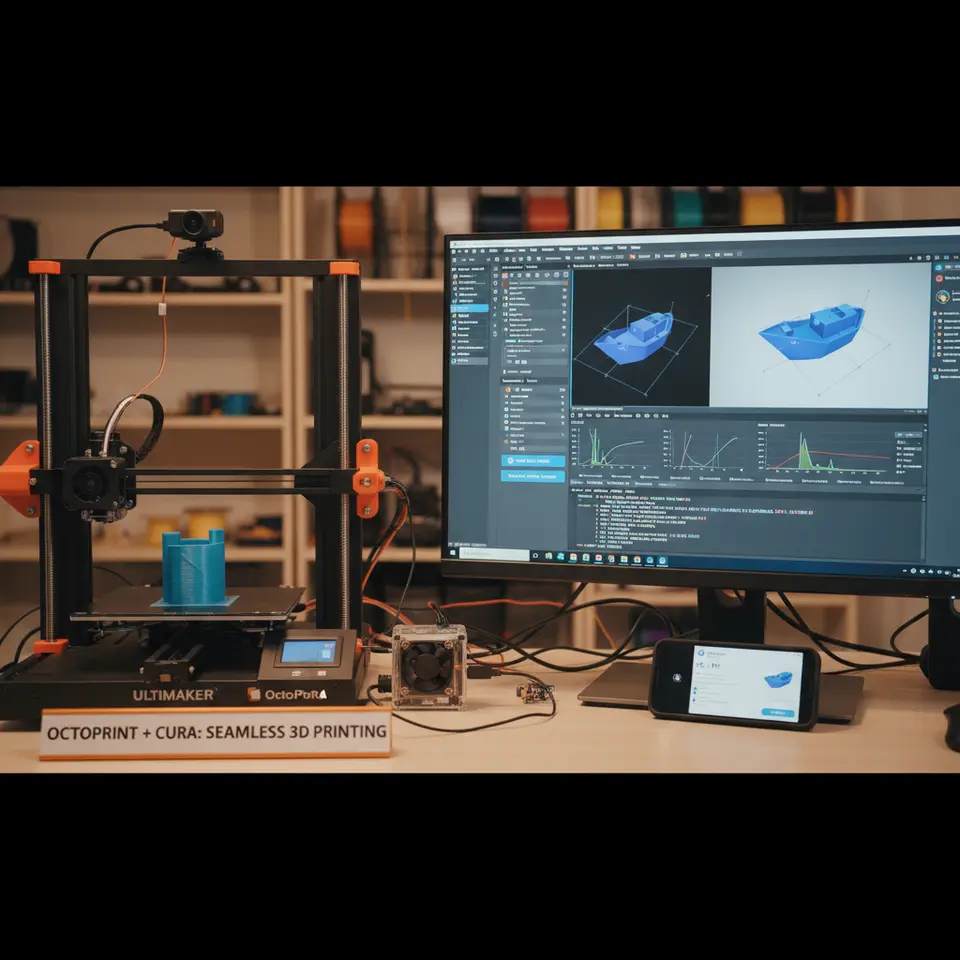
OctoPrint’s built‑in Webcam and Temperature Graph give you live feedback, but you can enhance the experience with plugins:
| Plugin | What It Does | Installation |
|---|---|---|
| OctoPrint‑Dashboard | Shows layer‑by‑layer preview, ETA, and filament usage. | Settings → Plugin Manager → Get More → Search “Dashboard”. |
| OctoPrint‑Telegram | Sends push notifications (print started, finished, errors) to your phone. | Same as above, then configure your Telegram bot token. |
| OctoPrint‑DisplayLayerProgress | Overlays current layer number on the webcam view. | Install from the Plugin Repository. |
| OctoPrint‑Timelapse | Automatically creates a timelapse after each print. | Useful for sharing on social media. |
After installing, enable the plugins in Settings → Plugin Settings and adjust the notification preferences to match your workflow.
8. Troubleshooting Common Connection Issues
Even with careful setup, you may encounter hiccups. Below are the most frequent problems and their fixes.
| Symptom | Likely Cause | Fix |
|---|---|---|
| Cura cannot connect (timeout) | Wrong URL or printer offline | Verify the OctoPrint URL (use http:// for local LAN, https:// for remote). Ping the IP from your computer. |
| Invalid API key | Key not copied correctly, or changed in OctoPrint | Regenerate the key in OctoPrint → Settings → API and re‑paste into Cura. |
| Upload fails with “403 Forbidden” | API key lacks write permissions (rare) | Ensure the key is the Full Access key (default). |
| Print starts but stalls after a few layers | Insufficient USB bandwidth or power on Pi | Use a high‑quality USB cable, and consider a powered USB hub. |
| Webcam shows black screen | Camera not configured or firewall blocks MJPEG stream | Follow OctoPrint’s webcam setup guide (https://octoprint.org/docs/). |
| Remote access shows “Untrusted Certificate” | Self‑signed SSL certificate | Use Let’s Encrypt on your Pi (see OctoPrint’s HTTPS guide) or accept the certificate in your browser. |
If you’ve tried the above and still can’t connect, check the OctoPrint Log (Settings → Logging) for detailed error messages.
9. Security Best Practices – Keep Your Prints Safe
Remote printing is powerful, but it opens a door to potential attacks. Follow these hardening steps:
- Enable HTTPS – Use a reverse proxy (nginx) with Let’s Encrypt to encrypt traffic.
- Restrict API Key Scope – Create a read‑only key for monitoring dashboards, and a full‑access key only for Cura.
- Change Default Passwords – OctoPrint’s admin account uses “admin” by default; set a strong password.
- Firewall Rules – Allow inbound traffic only on port 443 (HTTPS) and block everything else.
- VPN Access – For truly remote work, set up a VPN (WireGuard or OpenVPN) to your home network and access OctoPrint via its local IP.
These steps dramatically reduce the risk of unauthorized print jobs or data theft.
10. Automating the Workflow with n8n (Optional Advanced Step)
If you love automating repetitive tasks, n8n (an open‑source workflow engine) can bridge Cura, OctoPrint, and other services. Example workflow:
- Trigger – When a new g‑code file appears in a specific Cura export folder (watch node).
- HTTP Request – POST the file to OctoPrint’s
/api/files/localendpoint using the API key. - Delay – Wait 10 seconds, then send a Start Print command (
/api/job). - Notification – Push a Slack or Discord message with the print URL.
This “slice‑and‑send” pipeline eliminates the need to click “Upload” in Cura, turning the entire process into a single button press.
Reference: n8n’s official docs showcase similar HTTP request workflows – see https://docs.n8n.io/ for more examples.
11. Practical Takeaways – Quick Checklist
- Cura Setup – Enable OctoPrint plugin, create a connection profile, and store your API key securely.
- OctoPrint Settings – Generate API key, enable HTTPS, and install monitoring plugins (Dashboard, Telegram).
- Slicing Tweaks – Use moderate print speeds, enable Z‑hop, and select appropriate support type for remote reliability.
- Security – Use a VPN or TLS, change default passwords, and limit API key permissions.
- Automation – Consider n8n for hands‑free upload and start commands.
Frequently Asked Questions
Q1: Can I use Cura’s “Print via OctoPrint” on a Mac?
Yes. Cura is cross‑platform; the OctoPrint plugin works the same on macOS, Windows, and Linux.
Q2: Does streaming g‑code affect print quality?
No. The g‑code is identical to a locally saved file; the only difference is the transport method.
Q3: What if I have multiple printers on the same network?
Create a separate Cura connection profile for each printer, each with its own OctoPrint URL and API key.
Q4: Is there a limit to the file size Cura can upload?
OctoPrint accepts files up to several hundred megabytes; however, very large files (>200 MB) may take longer to upload over Wi‑Fi.
Q5: Can I monitor prints on my smartphone without a webcam?
Yes. OctoPrint’s mobile‑friendly UI shows temperatures, progress, and ETA. For visual feedback, install a cheap USB webcam or use the Raspberry Pi Camera Module.
Connecting the Dots – How This Fits Into CuraSlicers.com
At CuraSlicers.com we’re dedicated to turning complex 3D‑printing workflows into simple, repeatable processes. This guide builds on several of our existing resources:
- Need deeper insight on support optimization? Check out our article on Cura Support Settings – Effective Tips.
- Want to master first‑layer adhesion for flawless prints? Read our post on Perfect First Layer in Cura.
All of these pieces, together with the OctoPrint integration, give you a full‑stack solution from slicing to remote monitoring.
Call to Action
Ready to make every print a remote‑ready success? Explore more tutorials on CuraSlicers.com, follow us on Twitter and YouTube for weekly tips, and subscribe to our newsletter to receive the latest slicing profiles, plugin reviews, and workflow automations straight to your inbox.
Visit our main page https://curaslicers.com for a complete library of Cura guides, and start optimizing your 3D‑printing workflow today!
References
- Ultimaker Cura Documentation – Connecting to OctoPrint (https://ultimaker.com/software/ultimaker-cura) – external link (opens in new window).
- OctoPrint Official Documentation – API & Security (https://docs.octoprint.org/en/master/api/index.html).
- n8n Workflow Automation – HTTP Request Node (https://docs.n8n.io/nodes/n8n-nodes-base.httpRequest/).