Essential Ultimaker Cura System Requirements for 2025
Ultimaker Cura System Requirements 2025: What You Need to Know
Estimated reading time: 5 minutes
- Understand the system requirements for Ultimaker Cura 5.10 to optimize your printing experience.
- Upgrade your setup to improve performance and ensure smooth processing.
- Utilize Cura’s features effectively for better print quality.
- Implement troubleshooting tips to address common 3D printing issues.
- Explore automation tools to streamline your workflow.
Table of Contents
- Understanding the Ultimaker Cura System Requirements
- Practical Implications of System Requirements
- Why Upgrade Your System?
- Enhancing Your Ultimaker Cura Experience
- Troubleshooting Common Issues
- Conclusion
Understanding the Ultimaker Cura System Requirements
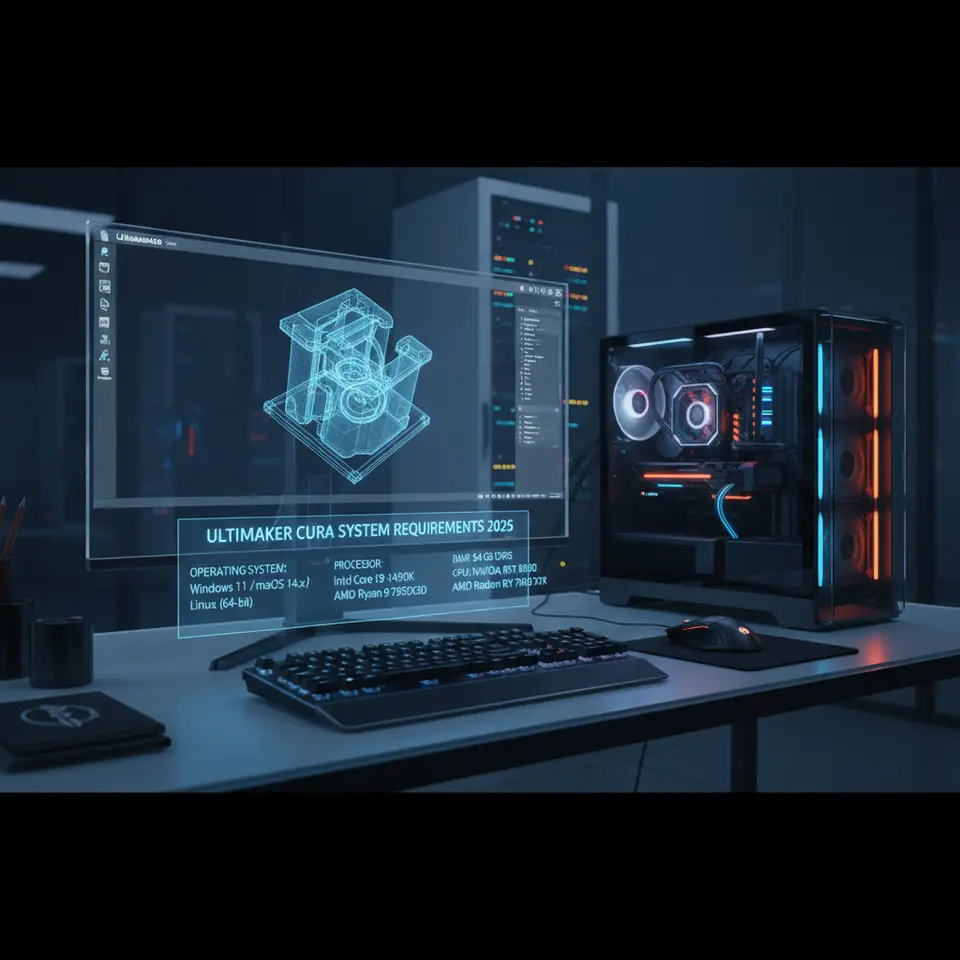
When you decide to dive into 3D printing or upgrade your slicing software, it’s vital to understand the system requirements for Ultimaker Cura 5.10, which include:
- Operating System: 64-bit versions of Windows 10 or later, macOS 11 (Big Sur) or later, and a compatible Linux distribution.
- Processor: A dual-core CPU as a minimum to handle the demands of modern 3D printing software.
- Memory (RAM): At least 4 GB of RAM, with 8 GB recommended for better multitasking and speed.
- Storage: Approximately 300 MB of free disk space required for installation and additional space needed for models and slices.
- Graphics: An OpenGL 4.1 compatible GPU for improved rendering and visualization.
These requirements reflect the increasing complexity and capability of slicing software, especially as Ultimaker continues to expand its features.
Practical Implications of System Requirements
Understanding these requirements is critical, particularly for hobbyists and professionals who want seamless workflows. If your system does not meet the above specifications, you may encounter performance bottlenecks that could lead to longer slicing times, crashes, or even unsuccessful prints.
Why Upgrade Your System?
Upgrading to meet these requirements ensures that your experience with Ultimaker Cura is as smooth as possible. For instance, having an OpenGL 4.1 compatible GPU can significantly enhance the visualization of complex models and the slicing interface, providing a better user experience for those working on intricate designs.
Enhancing Your Ultimaker Cura Experience
Once you have verified that your setup meets or exceeds the Ultimaker Cura system requirements for 2025, it’s time to explore some actionable tips that will help you maximize efficiency and print quality.
1. Optimizing Your Computer’s Performance
- Upgrade RAM: If possible, increase your RAM to at least 8 GB. This upgrade will allow for better multitasking when operating Cura alongside other applications.
- SSD Installation: If you are working from a traditional hard drive, consider upgrading to an SSD. This upgrade will significantly reduce loading times and improve the overall responsiveness of your system.
- Regular Maintenance: Keep your system clutter-free with regular updates and cleaning of files. This can enhance performance and decrease errors while slicing.
2. Utilization of Cura’s Features for Better Results
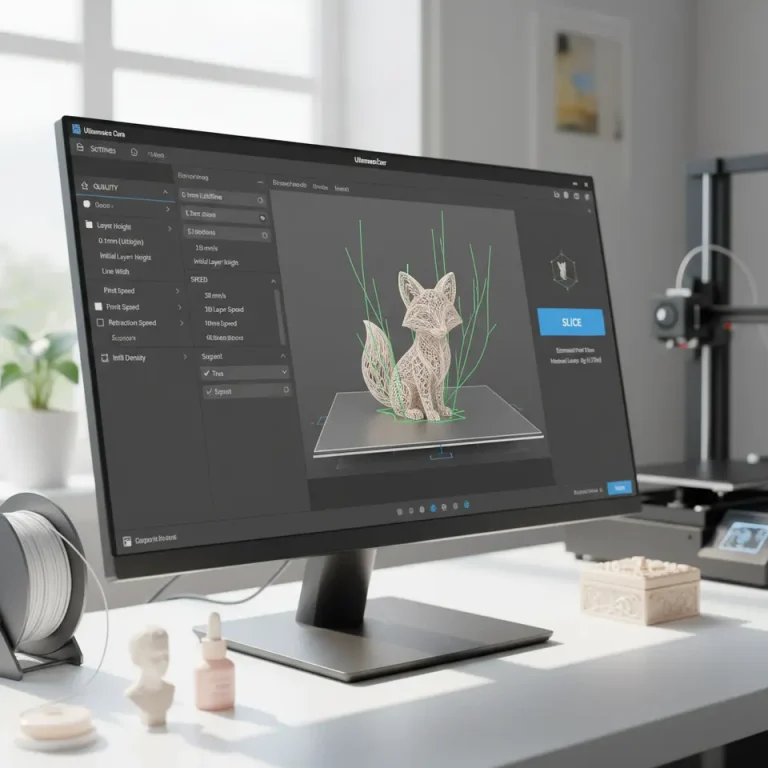
With Ultimaker Cura, the possibilities for optimizing your prints are numerous. The following features are particularly impactful:
- Adaptive Layers: Adjust layer height based on model geometry for improved detail without affecting overall print time. This feature is beneficial for prints requiring both fine details and robust structures. For more information, check out our guide on Cura Adaptive Layers Optimization.
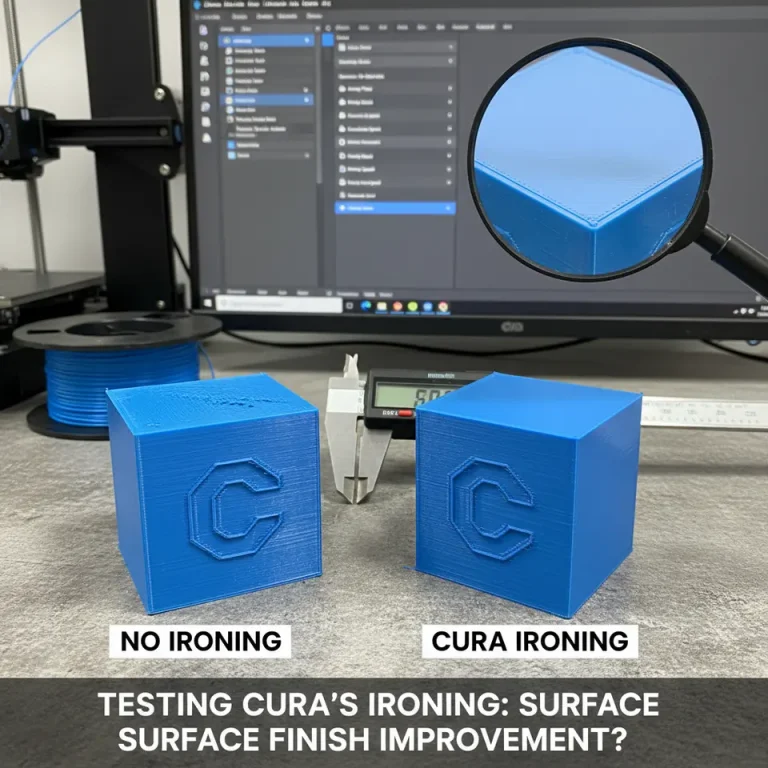
- Ironing: To give your prints a smooth finish, you can utilize the ironing feature, which applies an extra pass with the nozzle to flatten the top layers of your print. Learn more in our Cura Ironing Test article.
- Z-Hop: Enabling Z-Hop while retracting can prevent stringing and improve the quality of your prints. For an in-depth look, visit our guide on Enable Z-Hop in Cura.
3. Streamlined Workflow with Automation Tools
For those looking to optimize their workflow further, incorporating automation can save substantial time. Tools like n8n can help automate repetitive tasks, ensuring you spend more time printing and less time managing processes. Utilize automation to manage file transfers, notifications, or even post-processing tasks more efficiently.
Troubleshooting Common Issues
Following the system requirements does not entirely eliminate the potential for issues to arise when using Ultimaker Cura. Here are some common problems you might encounter and their solutions:
Layer Adhesion Issues
If prints fail to stick together, ensure that your nozzle temperature and bed temperature are set correctly for the filament you’re using. For further tips on achieving strong layer adhesion, consult our article on Cura Strength Tips.
Print Speed and Quality Trade-offs
Finding the right balance between print speed and quality can be challenging. You may want to explore different speed profiles in Cura to optimize your prints. For a detailed understanding, refer to our guide on Cura Speed & Quality Profiles.
Troubleshooting Stringing
Stringing occurs when small strings of melted filament remain between different parts of the print. This issue can often be resolved by adjusting retraction settings. Visit our Cura Stringing Fix Guide for a comprehensive approach to this common challenge.
Conclusion
The Ultimaker Cura system requirements for 2025 mark an essential milestone in the evolution of slicing software. By ensuring your setup meets these standards, you can significantly enhance your 3D printing experience. With the multitude of features available in Ultimaker Cura, such as adaptive layers, ironing, and Z-Hop, combined with optimization strategies and automation tools, you can elevate both the quality and efficiency of your prints.
Ready to dive deeper? Explore more in our expansive library of guides, including detailed insights into improving your first layer adhesion, to help you achieve the best results in your 3D printing journey.
For further updates and resources, be sure to visit CuraSlicers.com and follow us on social media for the latest tips and tutorials. Happy printing!
FAQ
What operating systems are compatible with Ultimaker Cura 5.10?
Ultimaker Cura 5.10 is compatible with 64-bit versions of Windows 10 or later, macOS 11 (Big Sur) or later, and most Linux distributions.
How much RAM is recommended for optimal performance?
At least 4 GB of RAM is required, but 8 GB is recommended for better multitasking and speed.
What features can I use to improve print quality?
Utilizing features like Adaptive Layers, Ironing, and Z-Hop can significantly improve print quality and reduce issues such as stringing.